WeCom
Connect a WeCom smart bot to an AgentConnect agent for direct chats and group @mentions, with streamed replies, files, and tap-to-answer questions.
AgentConnect Cloud and self-hosted deployments support WeCom. Each organization connects a smart bot from its own WeCom. The daemon connects outbound through the smart bot's long connection, so no public callback URL is required. Privately deployed WeCom is not supported.
Create the smart bot
In the WeCom admin console, signed in as an admin of your organization:
-
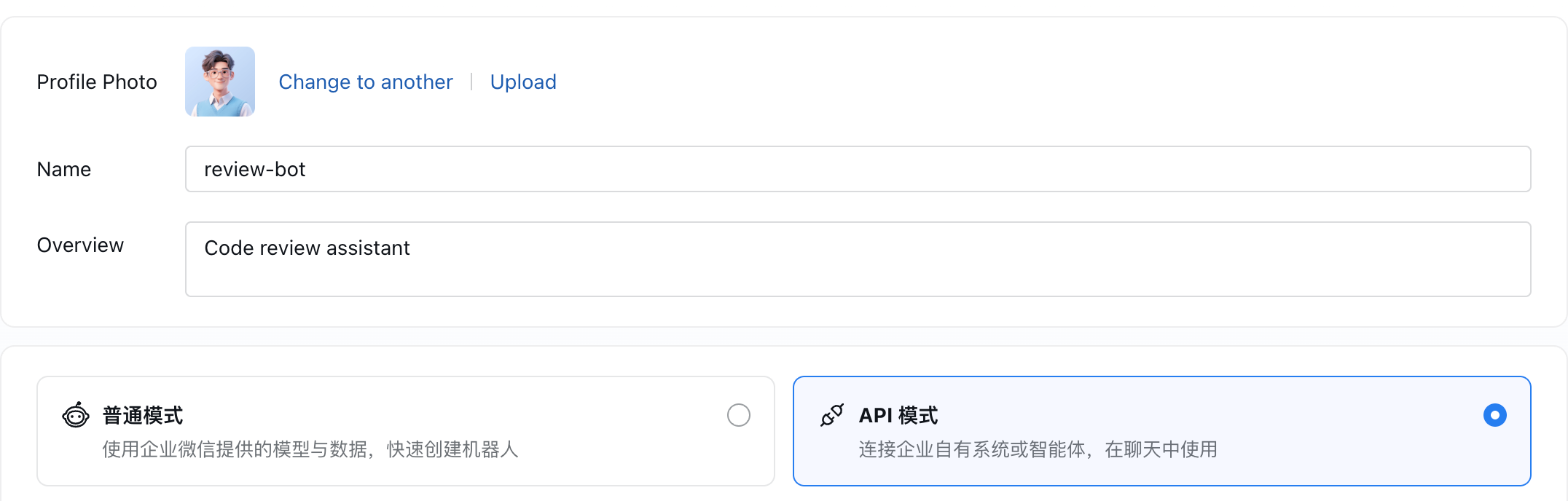
Fill in the bot's Name, Overview, and Profile Photo with your agent's. WeCom shows them in chats, and AgentConnect cannot set them for you. Then choose API 模式 (API mode).
-
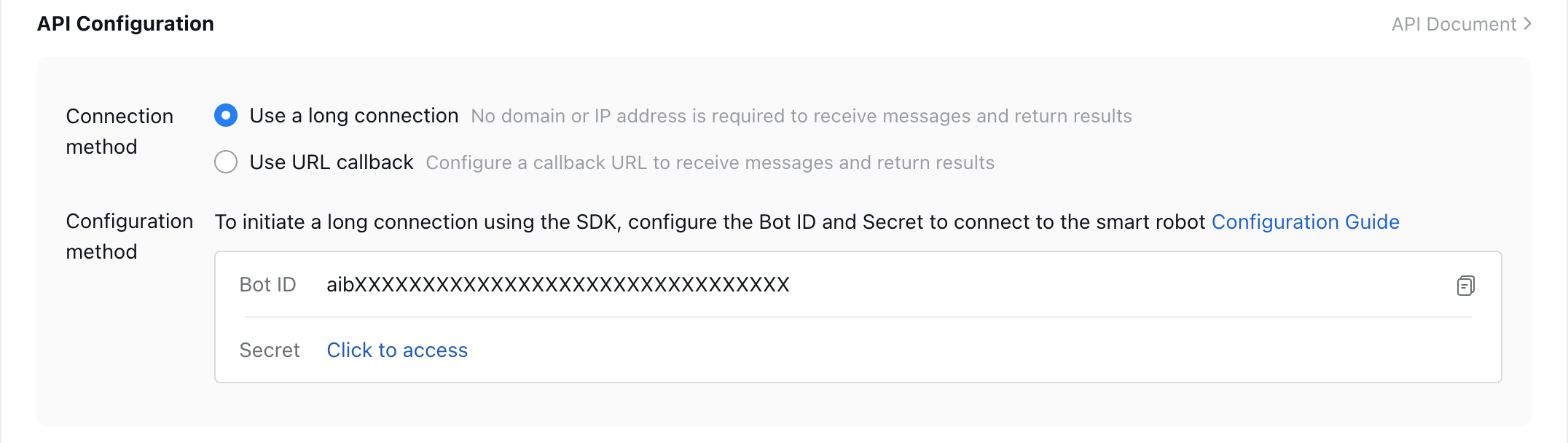
Under API Configuration, keep Connection method on Use a long connection.
-
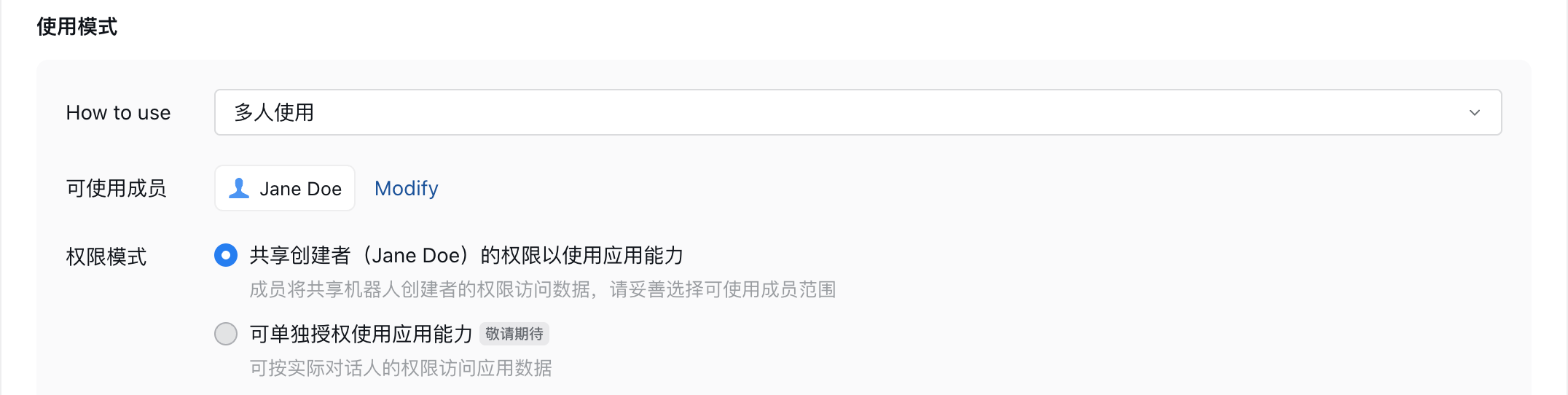
Under 使用模式 (usage mode), change How to use from the default 仅个人使用 (personal use only) to 多人使用 (multiple people), and choose under 可使用成员 (members who can use it) the members who may use the bot.
-
Click Save, then copy the Bot ID from API Configuration and click Click to access to get the Secret.
The labels above are the console's English ones; switch language at the bottom of the page. Some labels stay in Chinese there, and they are given as shown, with a translation.
A smart bot allows one long connection at a time. Give AgentConnect a bot nothing else connects to: a second program on the same bot disconnects the first.
Connect it
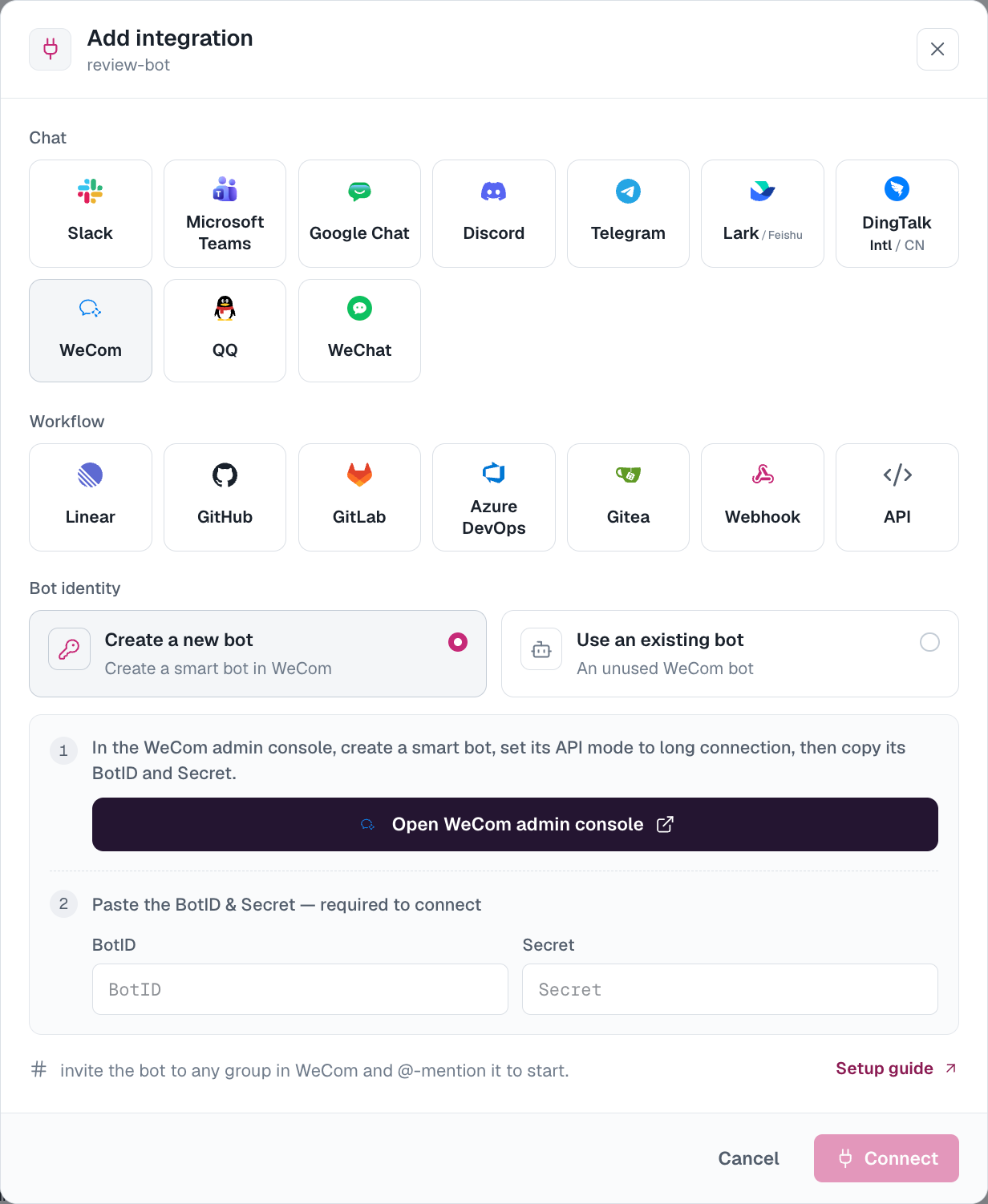
On your agent, open Integrations → Add integration → WeCom, paste the Bot ID and Secret, and click Connect. AgentConnect checks the pair with WeCom before saving it; a bot whose connection method is not long connection is refused with what to change.
Use it
- Direct chats — message the bot directly. A direct chat is one ongoing session with the agent.
- Groups — add the bot to a group and @-mention it. WeCom delivers a group message only when it mentions the bot. A WeCom group has no threads, so everyone in the group shares one conversation with the agent, and the group's Session mode on the agent's Integrations card decides how the agent organizes the work in it.
- Replies — the answer streams in as the agent writes it, formatted as Markdown. A long answer continues in follow-up messages, because WeCom ends a streamed message after ten minutes and caps its size.
- Files and images — send the bot an image, file, or video in a direct chat; in a group, attach images to the message that mentions the bot, or quote a file while mentioning it. A voice message arrives as WeCom's own transcription. An agent can share images (PNG, JPEG, or GIF, up to 10 MB) and other files (up to 20 MB) from its workspace back.
- Questions — when the agent asks you to choose one option, it sends a card and you answer with a tap. A question that does not fit a card arrives as a numbered list instead: quote that message and reply with the number, and in a group also @-mention the bot.
- Approvals — WeCom has no approval card. When a tool call needs approval, an Agent editor answers it in the console, and the conversation gets a notice.
See In-conversation commands for stopping, cancelling, queuing, and changing supported session settings.
Notes
- WeCom gives a smart bot no group or member names, so the Console lists conversations as
WeCom group · <tag>and people asWeCom member · <tag>, or by account ID where WeCom sends a readable one. - WeCom offers a smart bot no reaction or typing indicator, so the first sign of work is the streamed reply itself.
- WeCom limits a bot to 30 messages a minute and 1,000 an hour in each conversation. Near the limit the stream refreshes less often; if WeCom refuses part of an answer, the full text stays in the session.
- The daemon fetches an attachment when it arrives and keeps it for 24 hours. After that, or after the daemon restarts, send the file again.
- A group responds to mentions or not at all, and AgentConnect cannot remove the bot from a group. Remove it in WeCom.
- One WeCom bot binds to one agent. Deleting the integration frees the bot for reuse (An unused WeCom bot next time); it does not delete the smart bot from WeCom.
- Replace the Secret under Integrations → Messaging apps → WeCom → Replace secret. AgentConnect cannot test the new Secret without disconnecting the running bot, so if the bot stops responding afterwards, copy the Secret from WeCom again.
Self-hosting
WeCom is off by default on a self-hosted deployment. Turn it on with features.wecom in the Helm chart; on Docker Compose, add wecom to FEATURE_FLAGS in compose.env and recreate web. Until the flag is on, WeCom does not appear in the integration picker.
How is this guide?