DingTalk
Connect a robot from your organization's own DingTalk app for direct messages and group @mentions.
This page covers DingTalk's international edition (dingtalk.io). For DingTalk in mainland China (dingtalk.com), switch to the Chinese version.
AgentConnect Cloud and self-hosted deployments support DingTalk. Each organization connects a robot from its own internal app. The daemon connects outbound through DingTalk's Stream mode, so no public callback URL is required.
Create the app
In the DingTalk developer console, signed in as an admin of your organization:
-
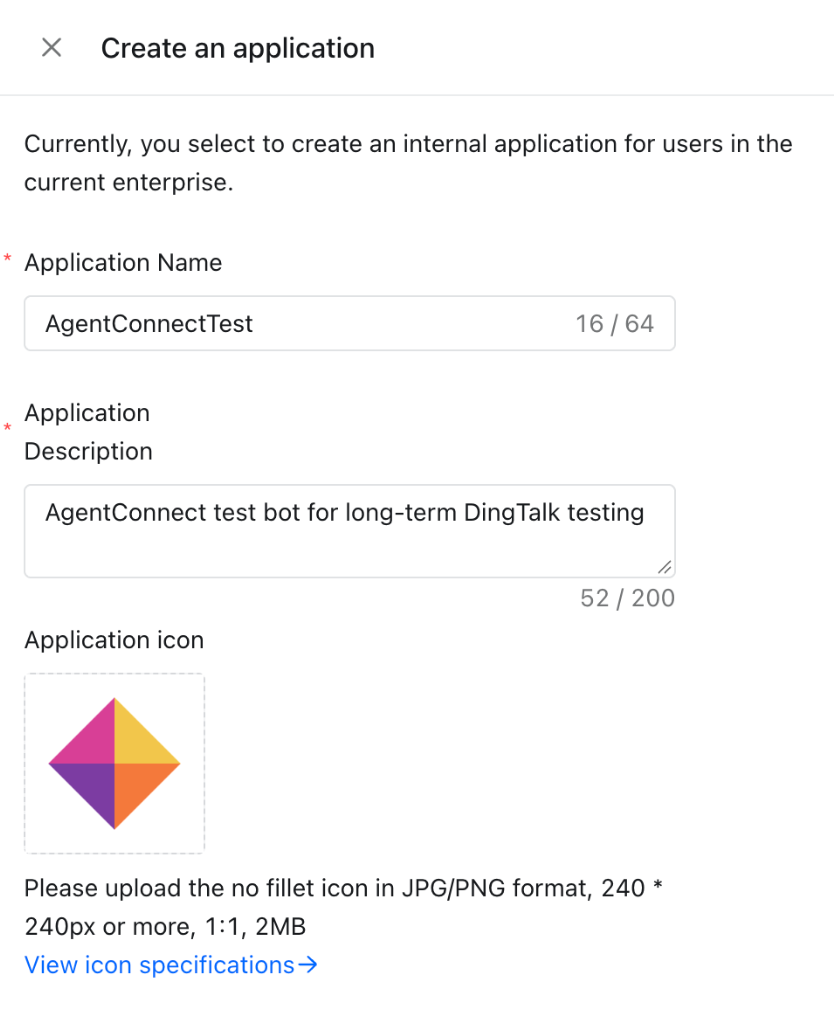
Under Applications → DingTalk application, click Create an application, and give it a name, a description, and an icon.
-
Under Add application capabilities, add Bot, then turn on Robot configuration. Give the robot your agent's name and icon, which DingTalk shows in chats and AgentConnect cannot set for you.
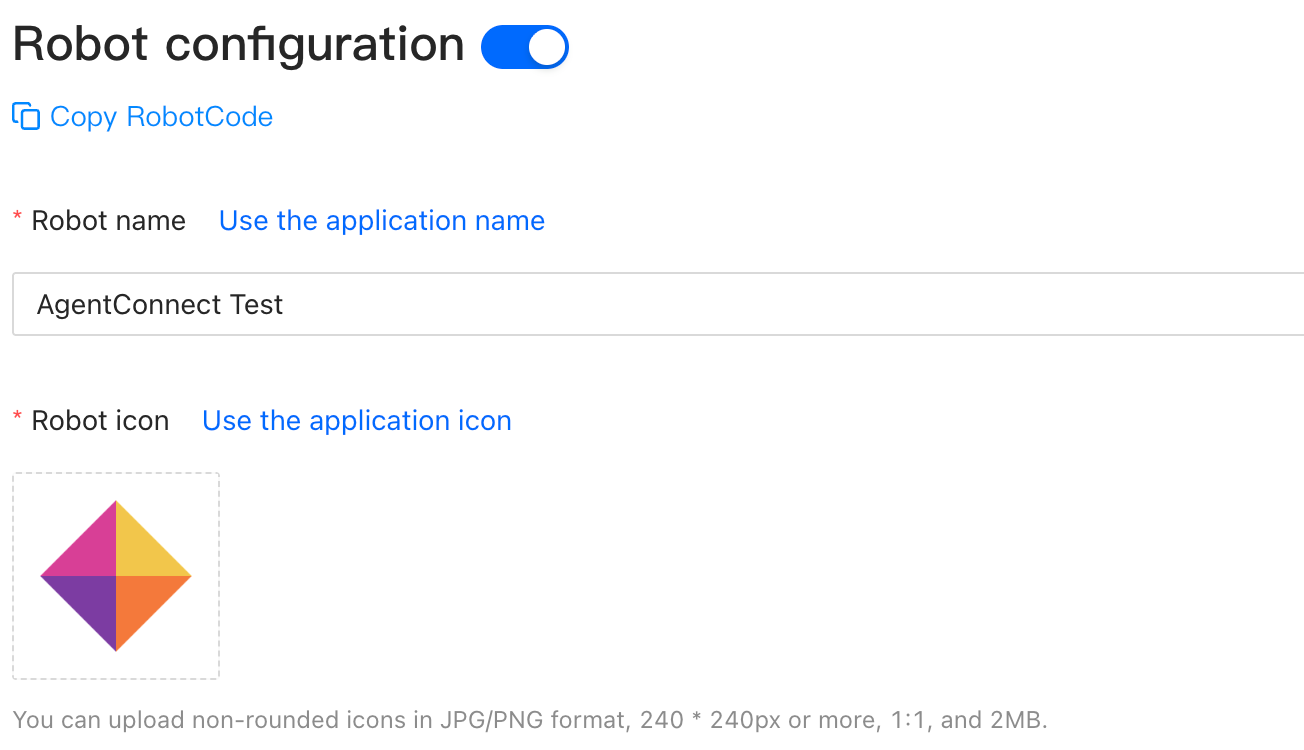
Fill in the robot's introduction (up to 10 characters) and description, upload a message preview image, keep the Stream message receiving mode, and click Publish.

-
Under Permission management, search for
Contact.Org.Readand enable it; it needs no approval. Once the robot receives its first message, the Console names the integration after your organization instead of its Client ID. -
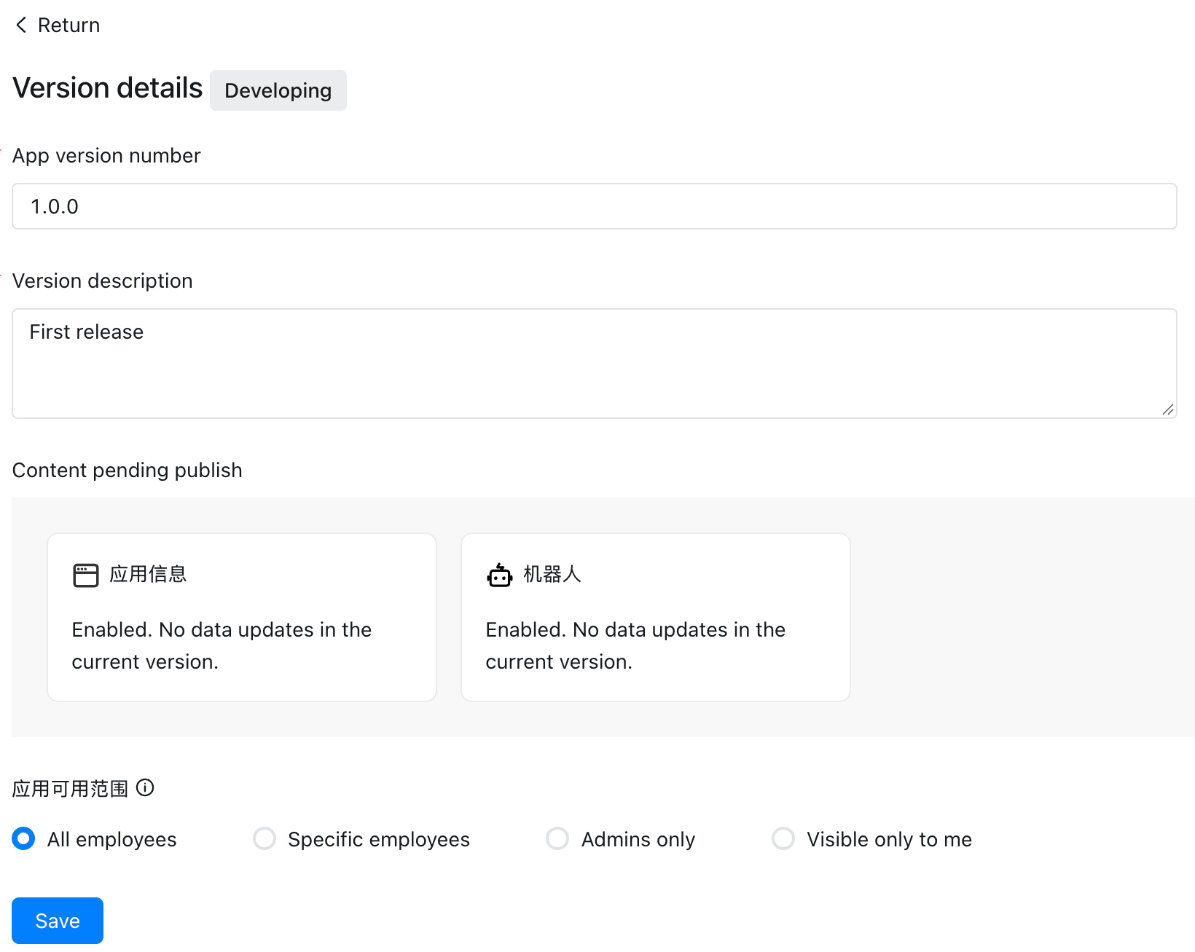
Under Version management and release, create a version, choose who can see the robot, save it, and confirm the publish. The version needs no review and goes live at once. Every later change to the app takes effect only after you publish a new version.
-
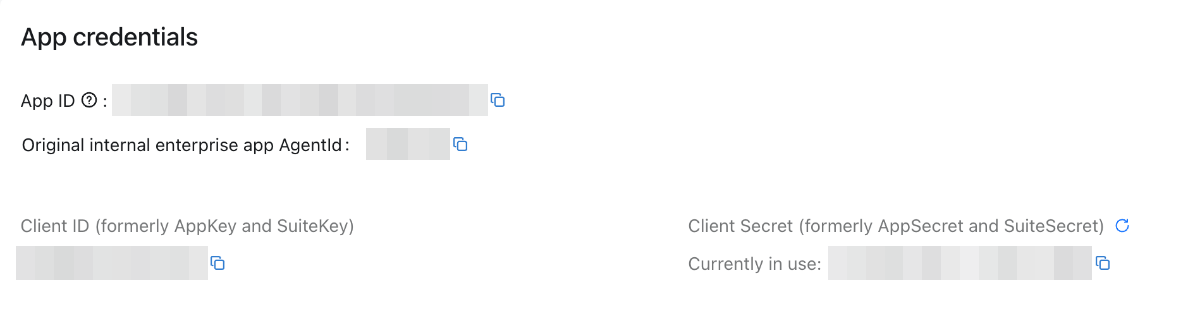
Under Credentials and basic information, copy the Client ID and Client Secret.
Connect it
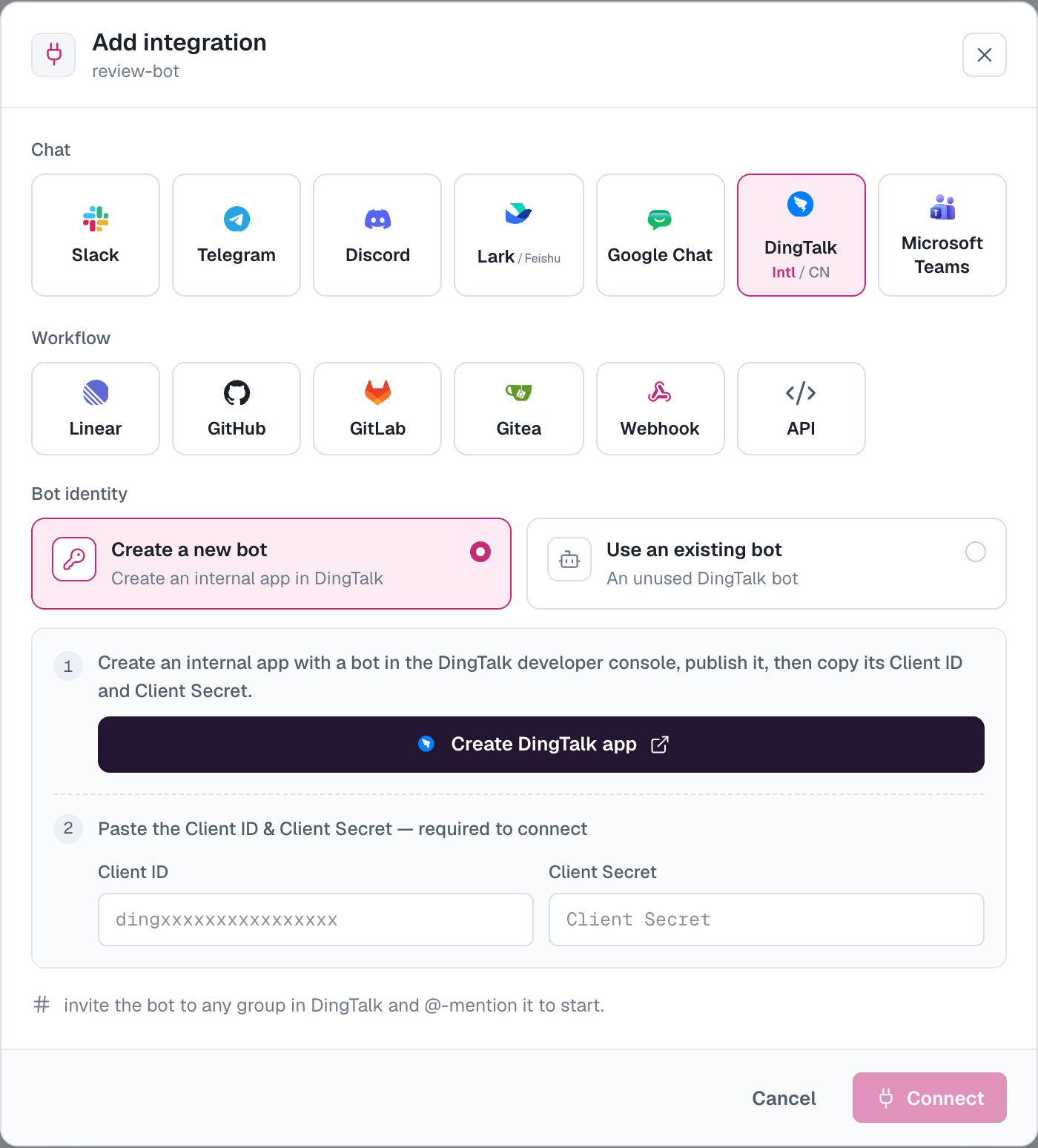
On your agent, open Integrations → Add integration → DingTalk. Keep Intl picked under DingTalk on the tile (CN is mainland DingTalk), paste the Client ID and Client Secret, and click Connect. AgentConnect checks the pair with DingTalk before saving it; an app of the other edition is refused with the edition to switch to.
Use it
- Direct messages — message the robot directly. A direct message is one ongoing session with the agent.
- Groups — add the robot to a group and @-mention it. DingTalk delivers a group message to the robot only when it mentions it. Each new mention starts a session; to continue one, reply to the agent's message, which mentions the robot for you. To keep one session for the whole group instead, set the group's Session mode to Single session on the agent's Integrations card.
- Progress — while the agent works, a 🤔 "thinking" reaction sits on your message, and it disappears when the turn ends. Answers arrive as Markdown.
- Files and images — send the robot a file or image in a direct message, or quote one in a group while mentioning the robot. An agent can share images and files from its workspace back.
- Questions — when the agent asks you to choose, it sends the options as a numbered list. Reply to that message with your choice. The international edition has no interactive-card permission, so its questions have no tap-to-answer buttons.
- Approvals — DingTalk has no approval card. When a tool call needs approval, an Agent editor answers it in the console, and the conversation gets a notice.
See In-conversation commands for stopping, cancelling, queuing, and changing supported session settings.
Notes
- DingTalk limits each organization's API calls by plan. When DingTalk refuses calls over the limit, the agent says so once in the conversation instead of answering.
- Topic circles aren't supported: DingTalk lets only its own assistants and webhook robots join one, not an app's robot.
- One DingTalk robot binds to one agent. Deleting the integration frees the robot for reuse (Use an existing bot next time); it does not delete the app from the DingTalk developer console.
- Replace the Client Secret under Integrations → Messaging apps → DingTalk → Replace secret. The robot's conversations are unchanged.
How is this guide?