Integrations overview
How agents meet channels — bots, integrations, shared bots, and the commands that work in any conversation.
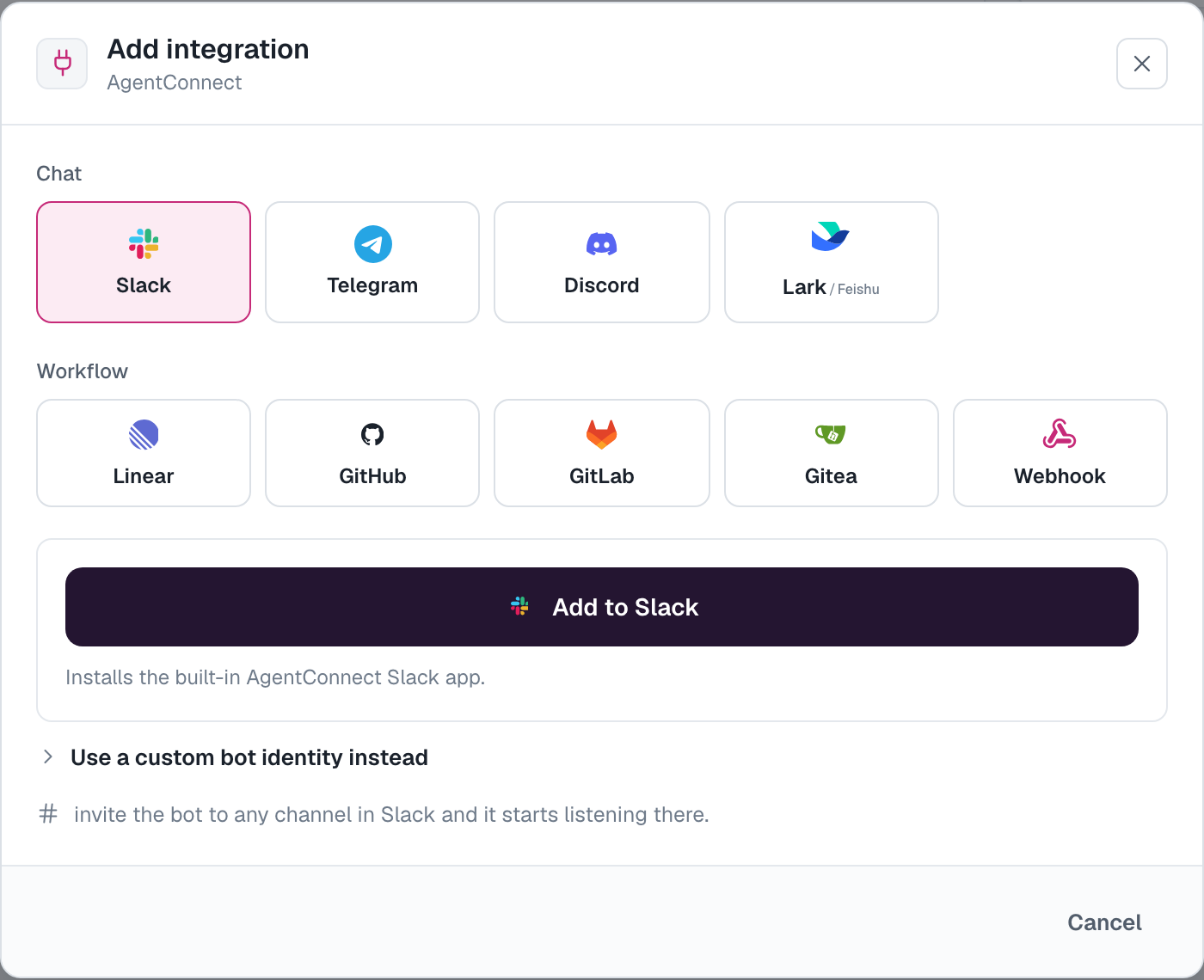
An integration binds one agent to one way of reaching it. The supported kinds:
| Platform | The agent responds to | How to connect |
|---|---|---|
| Slack | Channels, threads, and DMs | Add to Slack, or connect your own Slack App |
| Microsoft Teams | 1:1 chats, group chats, and team channels | Connect with Microsoft as an administrator, or register your own bot |
| Telegram | DMs and group messages | A bot token from @BotFather |
| Discord | Channels, threads, and DMs | A bot token; AgentConnect builds the invite |
| Lark / Feishu | Group messages and one-to-one chats | One-click app setup, or an App ID and secret |
| Google Chat | Space @-mentions and DMs | Create a Chat app and connect its service-account JSON key |
| DingTalk | DMs and group @-mentions | An internal app's Client ID and Client Secret; choose mainland China or international |
| Private chats and group @-mentions | An official bot's AppID and AppSecret; self-hosted only | |
| GitHub | Issues, PRs, comments, deployments, and releases | Install a GitHub App and authorize the agent's repositories |
| GitLab | Issues, merge requests, comments, and releases | Connect with OAuth; AgentConnect creates each agent's service account |
| Azure DevOps | Azure Repos PRs and comments | Connect with Microsoft, or use your own application |
| Gitea / Forgejo | Issues, PRs, comments, and reviews | A dedicated bot user's token, per organization |
| Linear | Delegated issues and @-mentions | Authorize the workspace in Linear |
| Webhooks | JSON events from external systems | Create a webhook and send requests to its generated endpoint |
Add one from the agent page (Integrations → Add integration) or from the Agents list.
Bots are identities, integrations are bindings
For the chat platforms, the thing that lives in your Slack workspace, Telegram group, Discord server, or Lark / Feishu tenant is a bot — a durable identity with its own tokens. An integration binds that bot to one agent.
- Deleting an integration frees the bot rather than destroying it — reuse it for another agent from the Use an existing bot picker.
- Bots are managed org-wide under Integrations → Messaging apps: see Bots.
Platform tiles depend on the agent's daemon capabilities and deployment settings. QQ is self-hosted only. Each platform guide covers its prerequisites and self-hosting setup.
Binding channels
There's no channel picker: invite the bot to a channel and it appears in AgentConnect. On the agent's Integrations card, open a channel's settings and choose its Session mode first.
Session mode
Session mode decides how the agent organizes work in this conversation:
- Auto — a coordinator reads root messages and messages in threads not owned by a task. It hands a request to a task already working on that topic, opens a new task in the message's thread, answers a quick question itself, or stays quiet. A message that @-mentions the agent must be handled; if the coordinator fails to handle it, a task opens for it. People then talk directly to the task in its thread. While the coordinator decides, platforms with reactions show 🤔.
- Per thread — each admitted root message starts its own session, and replies in its thread continue it.
- Single session — every admitted message in the conversation, at the root or in a thread, joins one long session. Send
!newto start a fresh one.
With Auto, no further response trigger is needed: the coordinator decides what needs a reply, so Respond to is hidden; Off remains available at the bottom. Auto can't be combined with By decision or a shared bot's Or pick by decision; switch the row to Per thread first.
In a task's thread, !new restarts that task and !stop stops it until someone mentions the agent there. At the conversation's root, !new starts a new coordinator, which keeps the open tasks, and !stop stops the coordinator's current turn. Open the coordinator's session in Sessions to see its tasks, each with the summary it keeps of its own progress, on the Tasks tab.
A self-hosted daemon runs Auto unless its config.json sets "features": { "autoSessionMode": false }; such a daemon answers an Auto conversation as Per thread.
Respond to: Per thread and Single session
After choosing Per thread or Single session, use Respond to to choose which messages activate the agent. The available choices depend on the platform:
- @-mentions — respond when mentioned; unmentioned follow-ups continue in a thread the agent already joined.
- All messages — run the channel's agent for every message.
Use the row's separate + Decision control to judge messages with a Decision and respond only when its answer matches your rules. An existing gate is shown as By decision; remove it with its × control to return to ordinary channel settings.
Linear has the same shape with a different roster: its conversations are the workspace's teams, listed for you the moment you connect it, and a team row takes only @-mention, By decision, or Off — every Linear event is addressed to the app already.
Turn off a conversation
Off is separate at the bottom of the menu. It stops responses in that channel, including to mentions, existing thread affinity, control commands, or shared-bot fallback. The closed button reads Auto, Per thread · @-mentions, or the other selected settings; when disabled, it reads Off. Picking a session mode turns an Off conversation back on.
Off keeps the bot in the channel, preserves past sessions, and only mutes inbound activation. A schedule or another agent's deliberate handoff can still post there. Manage the bot's actual channel or server membership on the chat platform.
New channel defaults
At the bottom of the agent's Integrations card, New channels start on sets the initial behavior for newly discovered channels and group conversations:
- Auto — the default where the platform and the agent's daemon support it; otherwise the conversation starts on Per thread with @-mentions.
- @-mentions · Per thread — start with a separate session per thread, activated by mentions.
- Off — wait for an editor to enable the conversation.
Changing this default leaves existing conversations and one-to-one DMs unchanged. Restricted agents and conversations the platform identifies as external still start Off. In assistant mode, supported places use a fixed coordinator session where Auto is available, otherwise a fixed Single session. This overrides their ordinary session-mode choice while preserving Off.
Direct messages
A direct message appears after someone writes to the bot, and each agent controls its own direct conversations. One-to-one DMs use On / Off for responding. Slack also offers Per thread and Single session; in assistant mode, a Slack DM uses its coordinator where Auto is supported. Telegram, Discord and Lark / Feishu already keep one continuous session for a one-to-one DM. Group conversations use the session modes their platform supports, including all three for Slack group DMs. Conversations for a restricted agent start Off until an allowed editor enables them.
Shared bots
Normally one bot ↔ one agent. A shared Slack bot can serve multiple agents through a single identity, and a connected Linear workspace always does — every agent you enable on it works through the deployment's one Linear app. Under Integrations → Messaging apps, expand the bot and pick the Default dispatch agent for each channel: one "@Assistant" in Slack, with different specialists behind it by channel. Or pick by decision chooses the specialist per conversation instead, with a Decision.
The channel trigger applies to the shared bot. Switching it Off stops routing through that bot in the channel.
Restricted agents
When an agent's team visibility is Selected, its chat conversations are gated too. Newly discovered channels and direct messages start Off until an allowed editor enables each one from the integration card. Every agent can also choose Off later as an explicit mute. See Team visibility.
Reading and posting in other conversations
When someone asks an agent to read or post in a conversation other than the one it is answering in, the agent does it for that person and never goes further than they could. The conversation it is answering in is always open to it.
It reads another conversation's messages, threads, reactions or bookmarks only where the person asking can see that conversation:
- a public channel, if they are a full member of that workspace rather than a guest;
- a private channel or group DM they are a member of;
- their own direct message with the agent. Someone else's direct message is never readable.
It posts, reacts, schedules a message, starts a conversation, or changes bookmarks, canvases or lists only where the person asking could post themselves. What it posts is their call. Three cases have their own rule:
- A direct message goes only to a member of your organization: on Slack, a full member of the workspace, not a guest.
- A conversation shared with another organization, such as a Slack Connect channel, takes a post from another conversation only as a draft. A member of your organization, usually the person who asked, gets it as a card in a Slack direct message and chooses Approve or Discard. A draft nobody answers expires after 24 hours.
- A run no person is behind, such as a webhook, a GitHub event or another agent's request, reads only public channels and its own conversation, and posts only in its own conversation. A schedule acts for the person who last edited it, or else the person who created it.
When the agent uses something from a private conversation, it says where it came from. When a request is refused, it says it can't share that or can't post there, without saying whether the conversation exists.
Slack and Lark / Feishu can tell who is in a conversation. Telegram and Discord cannot, so there only a group or channel the platform shows as public counts: a Telegram group with a public @username, or a Discord channel everyone in the server can view.
Cross-platform handoffs
Connect the same agent to more than one chat platform and it can send a deliberate handoff from one conversation to another. Use this only between two messaging workspaces you trust and have approved to exchange information. The destination starts its own linked session rather than merging both platform transcripts.
On another platform, or through another of the agent's bots, AgentConnect must first recognize the person asking as a member of your organization, by the chat account they linked under Your profile → Sign-in methods. The agent then judges them by the chat account they linked for the destination's workspace: a public channel needs them to be a full member, and a private channel or group DM needs them to be a member. Where they have linked no account for that workspace, the agent reads or posts only in conversations whose sessions they can open under Sessions. Telegram and Discord accounts can't be linked, so that is always the rule there. On AgentConnect Cloud the account to link is a Slack account, so a handoff works from Slack into a Telegram, Discord or Lark / Feishu conversation where the agent already has a session they can open. It does not work from Telegram or Discord into Slack or Lark / Feishu: AgentConnect cannot tell who someone there is, so they reach other channels and groups only on that same bot. A self-hosted deployment can also link Lark and Feishu accounts. See Hand off conversations between trusted workspaces.
In-conversation commands
Use these commands to control the current conversation without asking the model to do it. Slack uses ! because Slack reserves / commands for apps.
| Action | Other platforms | Slack |
|---|---|---|
| Stop and mute | /stop | !stop |
| Cancel the current turn | /cancel | !cancel |
| Resume | /resume | !resume |
| Queue a message | /queue <message> | !queue <message> |
| Show session status | /status | !status |
| Change model, effort, or permission | /models, /effort, /permission | The same commands with ! |
| Toggle fast mode | /fast on, /fast off | !fast on, !fast off |
In Per thread and an Auto task's thread, Stop also mutes that thread until someone mentions the agent again or uses resume. In Single session and at an Auto conversation's root, Stop interrupts the current turn without muting the conversation; use Off to silence it. Cancel interrupts only the current turn.
The runtime-setting commands (/models, /effort, /permission, /fast) work only when the agent's What people can do in chat is Talk, approve and change settings. On Slack with Follow Slack access on, they work only for the agent's editors, and anyone else is told privately who can change them. On Telegram and Discord these commands appear in the native command menu, where the registered name is /models rather than /model (both are accepted when typed).
When a tool call needs approval, Slack, Telegram, Discord, Lark / Feishu and Google Chat post an approval card in the conversation, unless the agent is set to Talk to the agent. The same setting decides who may answer it; see When a run asks for permission.
How chatty should an agent be?
The agent's Output mode controls what reaches the platform: Minimal keeps one live-updating reply, Low posts replies, Medium adds tools and plans, High also includes reasoning and tool output, and None keeps the run in the web session only. The complete transcript is always in Sessions.
How is this guide?