Microsoft Teams
Connect an agent to Microsoft Teams for 1:1 chats, group chats, and team channels.
A Microsoft Teams integration connects an agent to your Microsoft 365 organization. Teams delivers messages to bots over HTTPS only, so the deployment needs a public callback endpoint. AgentConnect Cloud has one.
There are two ways to connect. Connect with Microsoft uses the deployment's own Teams app, and an administrator only signs in. Register your own bot uses a bot your organization registers and installs itself, and works for any agent.
Connect with Microsoft
On your agent, open Integrations → Add integration → Microsoft Teams and click Connect with Microsoft.
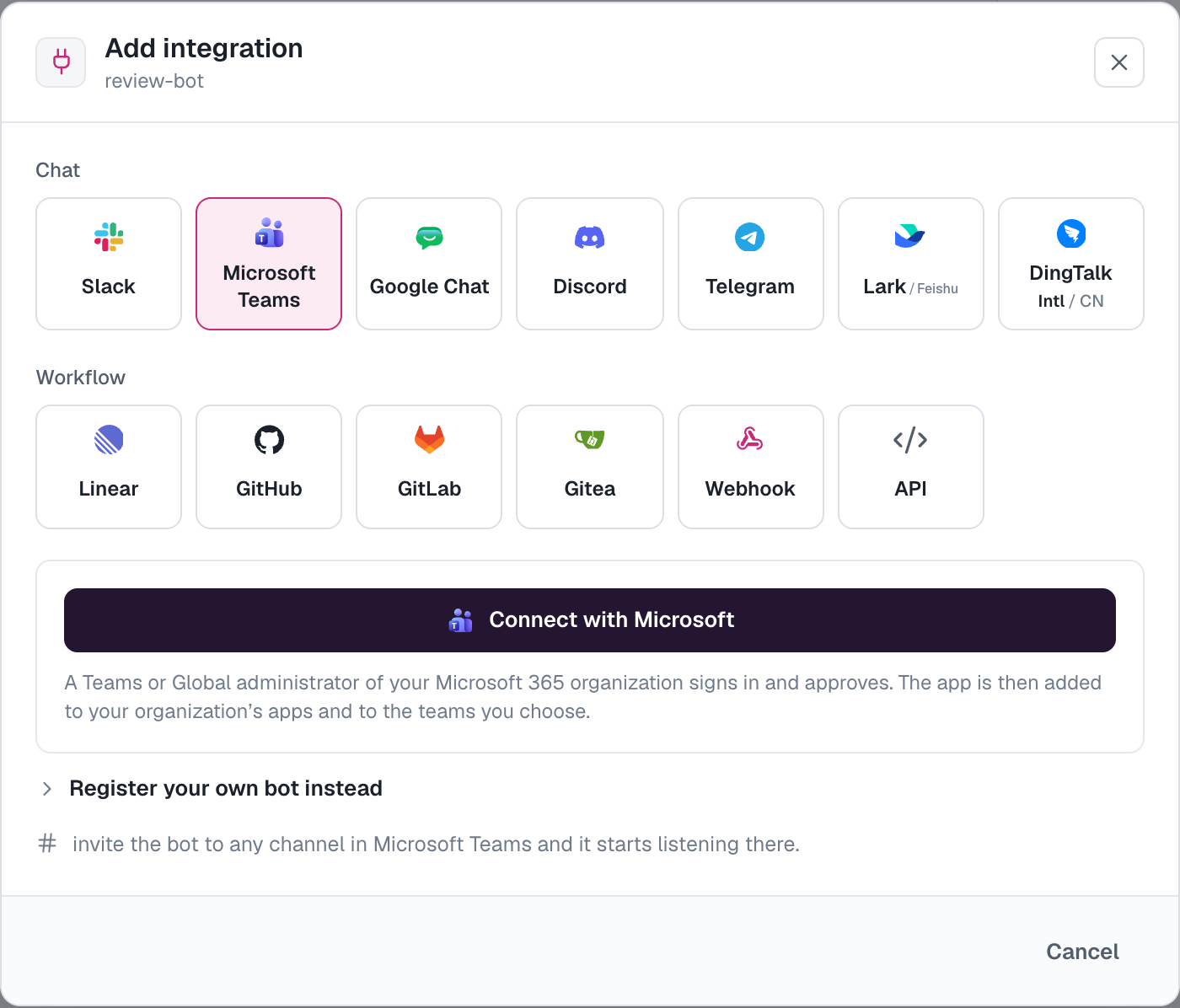
- Sign in as a Teams or Global administrator of your Microsoft 365 organization, and approve the app for the organization.
- Back in AgentConnect, choose the teams the agent joins, and click Add to teams. The agent answers in those teams' channels right away.
People add the app to a 1:1 chat from Apps → Built for your org, where their app setup policy allows it.
A Microsoft 365 organization connects to one AgentConnect organization, and through this app to one agent. To use another agent in the same Microsoft 365 organization, register your own bot for it.
Register your own bot
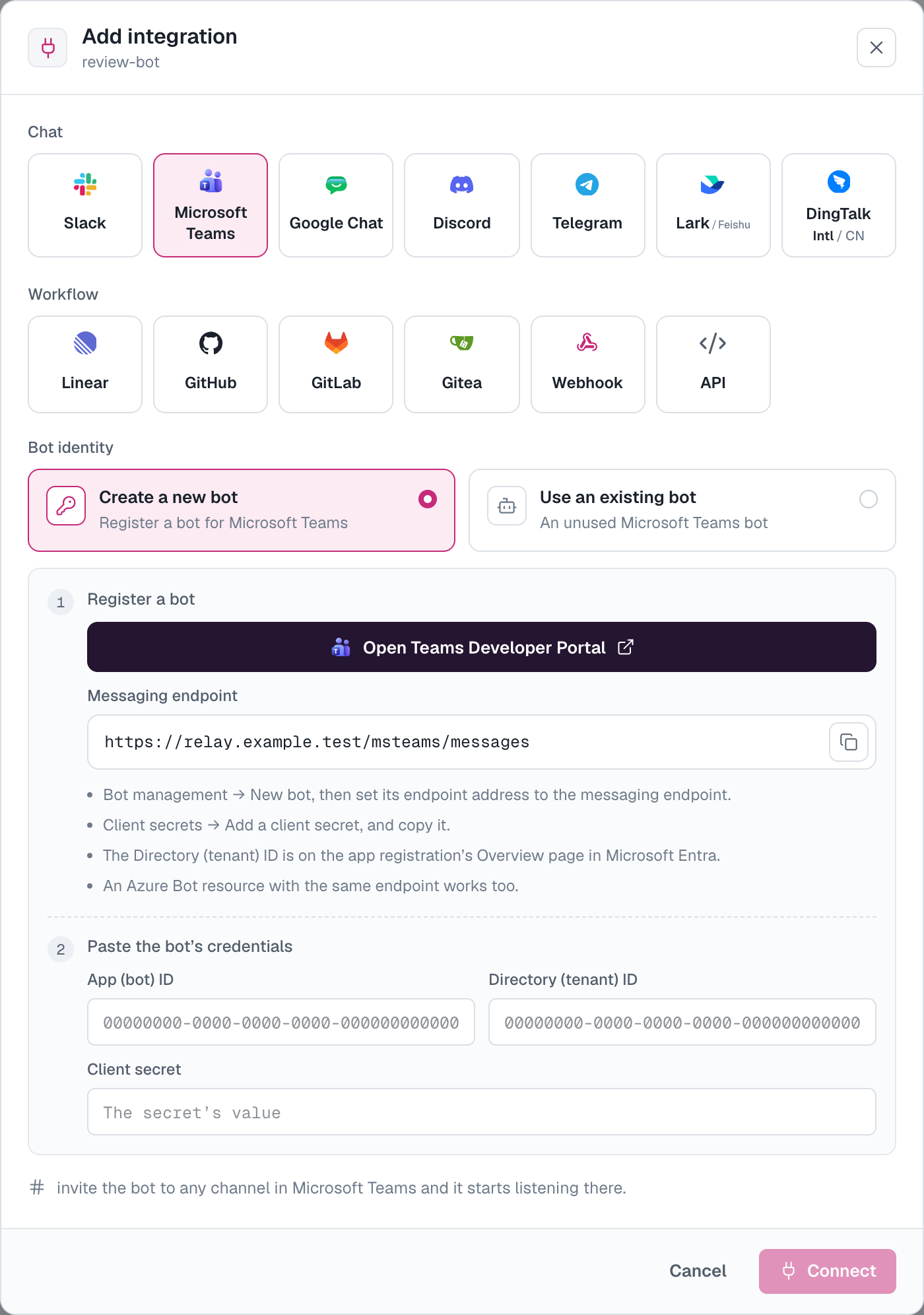
Choose Register your own bot instead in the wizard. In the Teams Developer Portal, signed in to your Microsoft 365 organization:
- Open Bot management → New Bot, name it, and click Add. The portal also creates the bot's app registration in Microsoft Entra.
- Under Configure, paste the messaging endpoint the wizard shows as the endpoint address, and click Save.
- Under Client secrets, click Add a client secret for your bot and copy the value. Teams shows it only once.
- Copy the Bot ID from Configure.
- In Microsoft Entra → App registrations, open the bot's app and copy its Directory (tenant) ID from Overview.
An Azure Bot resource with the same messaging endpoint works too.
Paste the App (bot) ID, the Directory (tenant) ID, and the client secret into the wizard, and click Connect. AgentConnect checks the three together with Microsoft Entra before saving them.
Then click Download app package and upload it in the Teams admin center under Teams apps → Manage apps → Upload new app. Open the app and choose Add to team: the bot answers in that team's channels right away.
- People can then add the app to a 1:1 chat. A newly uploaded app can take a few hours to open in 1:1 chats.
- For people to upload the package themselves, allow custom apps in their app setup policy.
Keep the app current
The agent's name and icon live in the Teams app. When they change, the bot's row under Integrations → Messaging apps → Microsoft Teams says that Teams has an older version of this app.
- With Connect with Microsoft, click Update in Teams and sign in as an administrator again. The app is updated in your organization and in the teams that already have it.
- With your own bot, click Download app package and upload it again in the Teams admin center. It updates the same Teams app.
Use it
- 1:1 chats — message the bot directly. A 1:1 chat is one ongoing session with the agent.
- Channels — mention the bot in a post to start a session in that post's thread; replies in the thread continue it. The channel's trigger on the agent's Integrations card decides whether an unmentioned new post starts work. A channel appears on the card after its first mention. In a private or shared channel, Teams sends the bot only messages that mention it, so mention the bot in each reply that should continue the session; there, All messages works like @-mentions.
- Group chats — mention the bot to start a session; reply to the agent's message to continue it. To keep one session for the whole chat, set its Session mode to Single session.
- Replies — the agent posts its answer once and edits it in place while it works, with Markdown formatting.
- Questions and approvals — the agent sends a card with a button per option. Tap your answer, and the card updates for everyone in the conversation. Who may answer an approval is set by the agent's What people can do in chat.
See In-conversation commands for stopping, cancelling, queuing, and changing supported session settings.
Channels shared with other organizations
A shared channel that includes people from another organization, or a conversation a guest joins, is an external place. It starts Off for the agent, even where new conversations are otherwise on. A mention there gets a one-time note that the agent isn't enabled; an editor turns the channel on from the agent's Integrations card.
Once it is on, the agent answers there, but an approval it needs is not posted in the channel. The person who asked gets the approval card in their own 1:1 chat with the bot, when they belong to your organization. Otherwise one Agent editor who linked their Microsoft account gets it in their 1:1 chat with the bot, chosen as Sessions describes; any editor can also answer it in the console.
Follow Teams access
An Owner can make Teams sessions visible only to the people in each conversation, under Settings → Session access → Require Microsoft Teams access. Each person links their Microsoft work or school account under Profile → Sign-in methods; the conversation's bot then checks that they are a current member of the 1:1 chat, group chat, or channel. Guests from other organizations cannot be matched, so they do not see synced sessions. With this on, only the agent's editors may answer approvals and change runtime settings from Teams, and an approval in a channel shared with another organization goes to an editor's 1:1 chat instead of the asker's. See Session visibility.
Notes
- Files and attachments are not supported yet.
- One Teams bot binds to one agent. Deleting the integration frees your own bot for reuse (Use an existing bot next time); it does not delete the bot or its app registration.
- Replace your own bot's client secret under Integrations → Messaging apps → Microsoft Teams. The bot's conversations are unchanged. The deployment app's secret is managed in the Setup Server.
Self-hosting
A self-hosted deployment needs its public callback endpoint configured, as for Linear. Connect with Microsoft appears once an operator configures the Microsoft Teams deployment app.
How is this guide?