Slack
Install AgentConnect in your Slack workspace and start working with an AI agent in a channel thread or direct message.
Bring AI agents into Slack to investigate issues, answer questions, and work with your team in channel threads and direct messages.
On AgentConnect Cloud, the recommended path is the built-in Add to Slack app. You approve the workspace installation; AgentConnect completes the OAuth flow and connects it without asking for an App manifest, token, signing secret, or callback URL.
Add AgentConnect to Slack on Cloud
You need an AgentConnect account and permission to install apps in your Slack workspace, or approval from its administrator.
- Open the AgentConnect console and sign in. Create an organization if you do not have one, and choose Cloud during setup. AgentConnect creates the built-in
agentconnectagent with a runtime and model; you do not need to install a daemon or supply a model API key for this path. - Open the Getting started card and choose Add to Slack. You can also open the built-in agent and select Integrations → Add integration → Slack.
- Click Add to Slack, choose your Slack workspace, and review and approve the permissions.
- Return to the console. It waits for Slack and closes the setup dialog automatically when the bot is ready. Check that Slack appears on the built-in agent's Integrations card, then try the first message below.
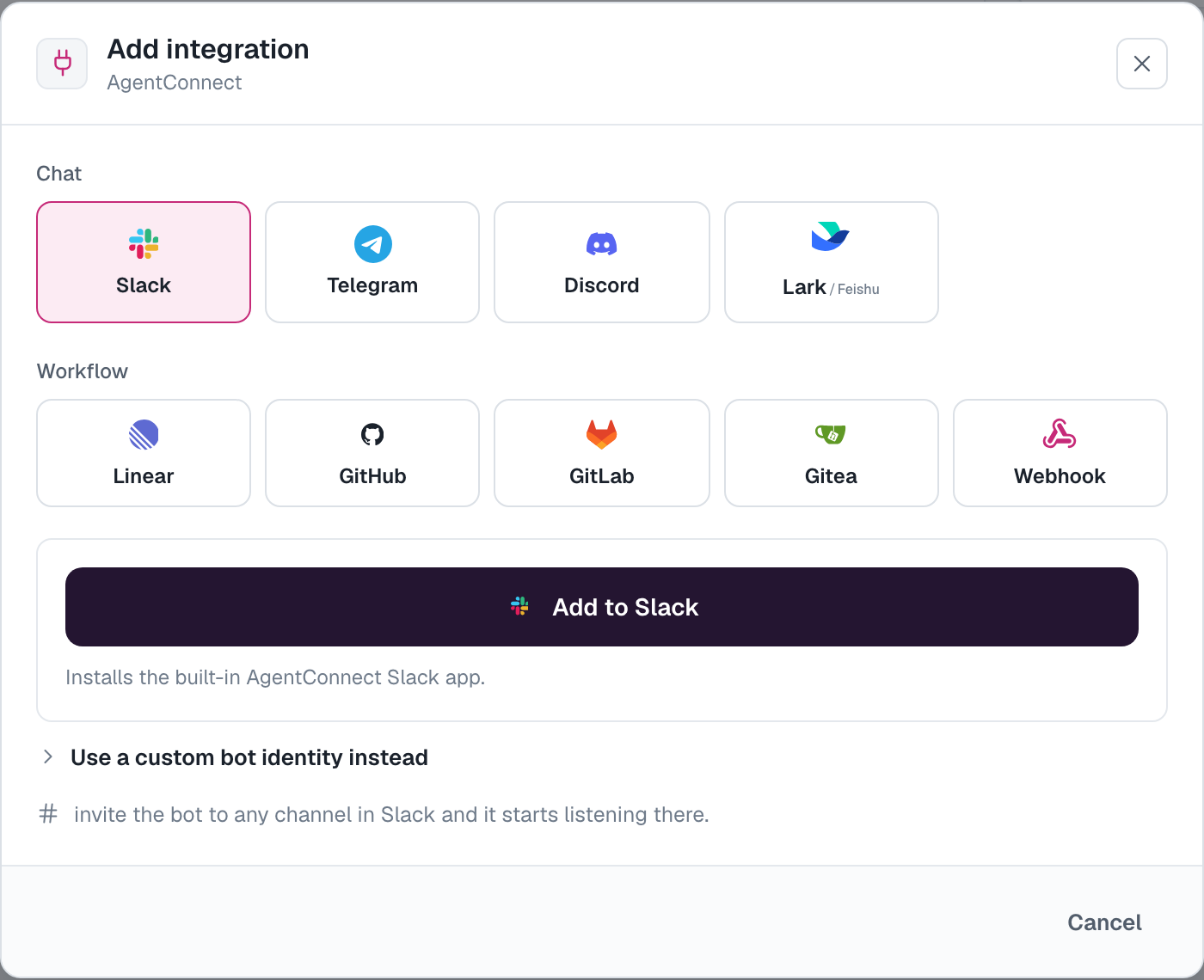
The installation initially serves the built-in agent. The custom-app and self-hosting instructions later on this page are optional alternatives; they are not steps in this Cloud installation.
Use it
Invite AgentConnect to a channel using Slack's channel app controls or this command (use the bot's displayed name if it has been renamed):
/invite @AgentConnectMention it with a small task, for example: @AgentConnect Summarize these release notes in two bullets: added CSV export; fixed login errors; improved search. The agent replies in the thread. Reply in that same thread to continue; you do not need to mention it again. You can also open the app in Slack and send it a direct message.
Each discovered channel appears on the agent's Integrations card. Choose @-mention (the default), any message, or Off for inbound activation. Off does not uninstall the app or block scheduled and delegated outbound posts. See In-conversation commands for stopping, cancelling, queuing, and changing session settings from Slack.
When a tool call needs approval, the agent posts an approval card in the thread. Who may answer it, and who may change settings from Slack, is set by the agent's What people can do in chat; with Follow Slack access on, only the agent's editors can.
Slack plans and AI outputs
Slack requires a paid plan to use the AI agent experience in the app container. Channel mentions and direct-message conversations remain available on free Slack plans; other Slack features are subject to your workspace's plan and permissions.
AgentConnect uses generative AI. Responses and generated files may be inaccurate or incomplete. Review outputs and proposed actions before relying on them, especially for legal, medical, financial, or other consequential decisions.
Data and support
Your configured runtime and model provider process the Slack messages, relevant history, and shared files needed for a task. Session transcripts and workspace files may be retained in your chosen execution environment, with memory stored according to its configuration. AgentConnect stores integration credentials encrypted in the control plane. See the Privacy Policy for processing, retention, and deletion information.
For installation help or questions about your data, email contact@agentconnect.md. You do not need an additional account to request support. The Terms of Service apply to AgentConnect's hosted service.
Disconnect or uninstall
Remove the integration from the agent to stop that agent from using it. If the bot is shared, other agents may still use the same installation. To revoke the app's access to the Slack workspace, remove it through Slack's app management settings; administrator approval may be required. Previously stored sessions, files, and memory are separate from the installation and are not automatically erased by uninstalling the app.
What an agent can do in Slack
Replying is not all an agent can do in a Slack session. It also gets Slack's own surface as tools, and reaches for them on its own when the task calls for one:
- Read the room — a channel's recent messages, a thread's replies, and a search of the workspace's public messages.
- React — add an emoji reaction to a message, or read the reactions already on one.
- Leave something behind — pin and unpin channel bookmarks, create and edit canvases, and read and update Slack lists.
- Reach further — open a direct message, start a conversation, share a file, and schedule a message for later.
These are injected only into sessions on Slack. The same agent working on another platform does not carry them; Discord and Lark / Feishu offer channel history, and Telegram reads attachments only. Everything an agent does this way is done as the bot, and shows up in the transcript like any other tool call.
Beyond the conversation it is answering in, the agent uses these tools for the person who asked: it reads only what that person can see and posts only where they could post. A Slack Connect channel takes a post from another conversation only as a draft that a member of your organization approves. See Reading and posting in other conversations.
Work in a Code channel
Release candidate: this example was built with AgentConnect v2.9.0-rc.63 and Codex, then rechecked and captured on v2.9.0-rc.65. Code channels require an installation whose Slack app and workspace support the feature. They are not available through every Cloud installation yet. If the agent reports that it cannot create one, continue in the original thread.
On Cloud, start with the Slack connection above and give your agent a repository it can write to under Workspace. Use a small example repository without business data for a first run. You do not need to install a local daemon for this workflow.
Start with a coding request
Ask for the result you need. A multi-step coding request can open a dedicated Code channel; a quick question stays in the current conversation. For example:
Build a CSV-to-JSON playground I can try here in Slack, then open a PR.Follow the channel link the agent returns. Continue there with normal requests such as Keep spaces in values, but ignore empty lines between records. The channel keeps one shared coding session. A thread reply continues that session and receives its reply in the thread; the Code view and artifacts belong to the whole channel.
Inspect the work and try the result
Open Code to inspect the diff. For an eligible isolated repository, AgentConnect updates it as work runs and compares the current workspace with the task's starting point. Committing the changes does not make that comparison disappear.
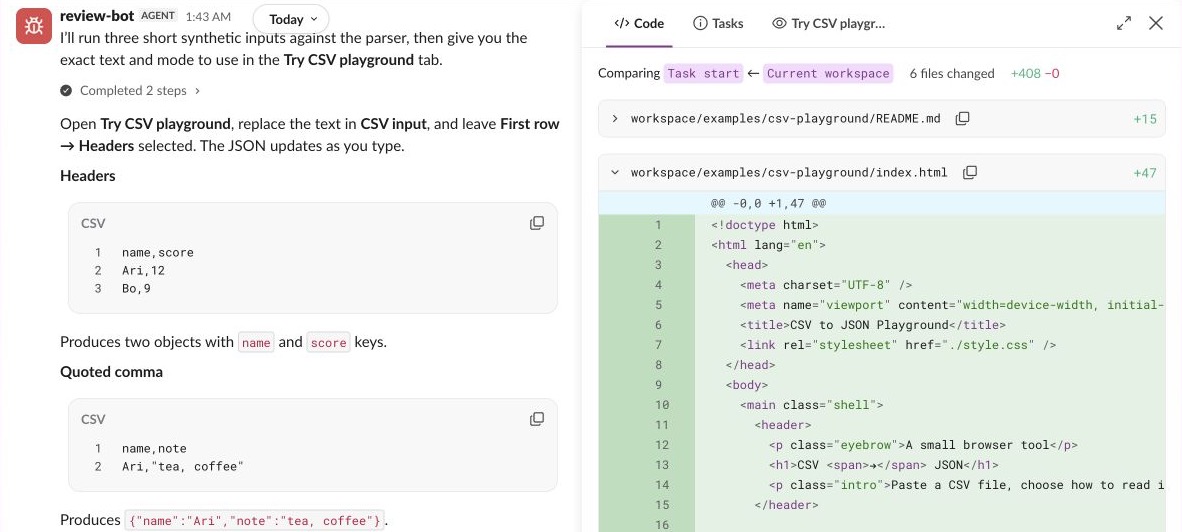
Ask for something you can try, as in the request above, and open the HTML preview the agent adds to the channel. In the CSV example, Headers produces objects and Data produces arrays. Try this synthetic input:
name,city,note
Ari,Oslo,"Likes tea, coffee"
Bo,Kyoto,"Said ""hello""
and waved"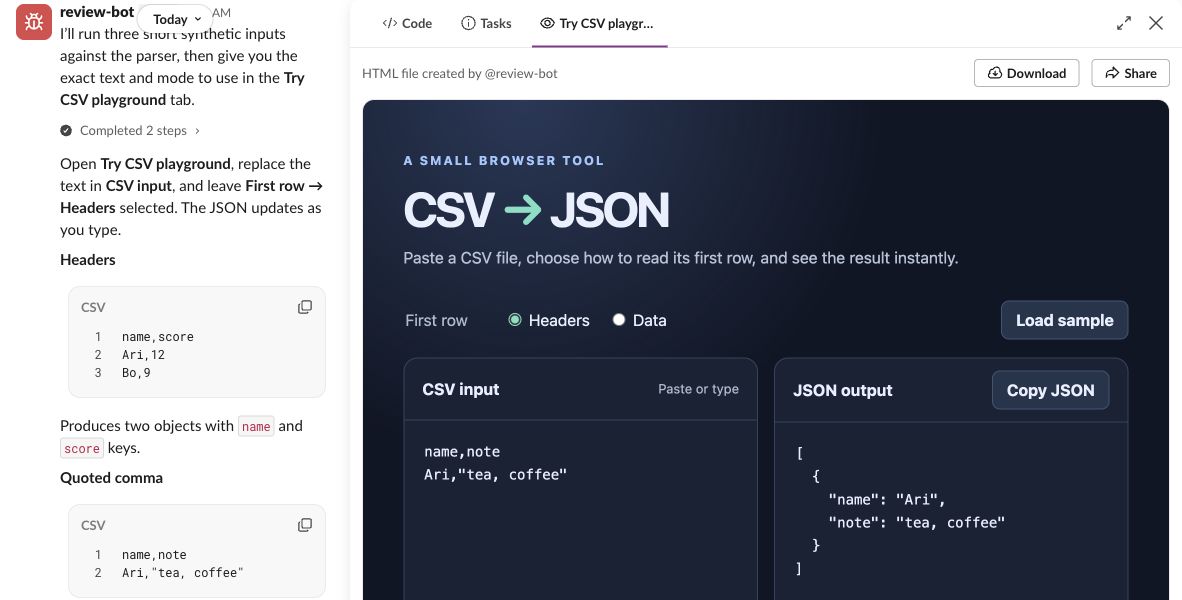
Then try name,city followed by Ari,Oslo,extra: the example reports the inconsistent column count, clears the output, and disables copying. The example pull request contains the source and six parser tests.
The fixed bar shows the model and effort together, plus reported context usage such as 42k/200k. Repository, branch, and PR items help you return to the code. A PR status reflects the agent's most recent check; it is not an automatic subscription to CI changes. Ask Check the PR and update its status when you need a fresh result.
Give an agent a custom Slack identity
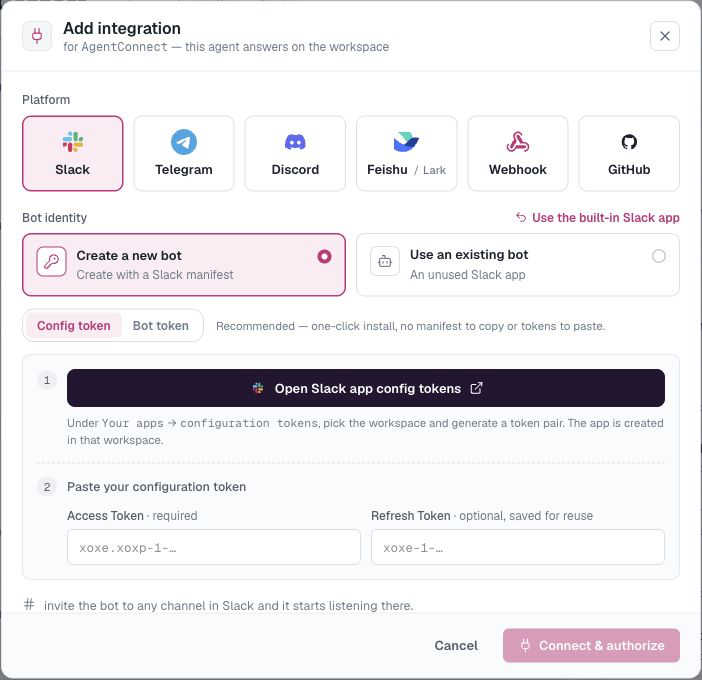
On the built-in agent, choose Use a custom bot identity instead when it needs a dedicated Slack App. Other agents open the custom-identity flow directly. This is also the normal path when a self-hosted deployment does not publish a built-in app.
Configuration-token install
This is the recommended custom-app path. If you have not saved a Slack configuration token yet, AgentConnect links to Slack's configuration-token page. Paste the access token (xoxe.xoxp-…) and its refresh token (xoxe-…) so AgentConnect can rotate it; an access token saved alone expires after roughly 12 hours. Slack scopes the pair to one user and workspace. AgentConnect saves it for that signed-in user, who can replace or clear it under Your profile → Slack config token.
Name the App, click Create & install, and approve it in Slack. With HTTP (Events API) delivery, AgentConnect captures the bot token and signing secret and finishes without credential copy-and-paste. With Socket Mode, Slack still requires you to generate one App-Level token with connections:write and paste the resulting xapp-… token.
Manifest install
Use the manual fallback when you cannot create Slack configuration tokens:
- Choose Copy manifest & open Slack, then create and install the App from the copied manifest.
- For HTTP, paste the Bot User OAuth token (
xoxb-…) and signing secret. - For Socket Mode, paste the Bot User OAuth token and an App-Level token (
xapp-…) withconnections:write.
If Slack reports changed scopes, reinstall the App once before copying the Bot User OAuth token.
Keep the app's permissions current
Slack grants permissions when the app is installed, so a release that adds a capability can leave an existing installation short of a scope. AgentConnect names the ones that are missing instead of failing quietly: open Integrations → Messaging apps → Slack and use Refresh Slack app on the bot's row.
- When AgentConnect can update the app for you, it syncs the manifest and asks you to reinstall the workspace so Slack grants the added scopes.
- When it cannot — a manifest install, or an app AgentConnect does not administer — it points you at the app's OAuth & Permissions page in Slack to add the listed scopes, then reinstall.
A built-in installation is repaired from the same row: AgentConnect starts the reinstall for you and waits for Slack to confirm it.
Delivery modes and self-hosting
- HTTP (Events API) is the Cloud default. Inbound callbacks enter through the AgentConnect Relay and go directly to the owning daemon. HTTP is required for a sharable bot.
- Socket Mode is a daemon-owned outbound connection. It needs no Relay or public callback URL and is limited to one agent per bot.
Self-hosted deployments show the built-in Add to Slack path only after the operator configures the deployment Slack App. Otherwise, use a custom App. HTTP is available only when the deployment has a public, connected Relay; without one, use Socket Mode.
Use one Slack app with multiple agents
AgentConnect generally recommends one bot identity per agent. If your team deliberately wants one Slack identity to behave differently across channels, make the bot sharable and dispatch each channel to a different agent:
- Open Integrations → Messaging apps → Slack and turn on Sharable for the bot.
- On each additional agent, choose Integrations → Add integration → Slack → Use an existing bot and select it.
- Back in Integrations → Messaging apps → Slack, expand the bot and choose each channel's Default dispatch agent.
See One Slack app with different agents by channel for the full pattern.
How is this guide?