Connect your personal WeChat to an AgentConnect agent by scanning a QR code, and message the agent as a contact only you can talk to.
WeChat connects your own personal WeChat to an agent. You scan a QR code in the Console, and the agent becomes a contact in your WeChat, under the ClawBot plugin, that only you can talk to. It joins no groups, and no one else can message it. For a bot your whole team talks to, use WeCom.
AgentConnect Cloud and self-hosted deployments support WeChat.
WeChat offers ClawBot as an experimental feature, so it may change or stop working on WeChat's side.
The daemon connects outbound to WeChat, so no public callback URL is required. There are no credentials to create or paste: the scan is the whole setup.
Connect it
-
On your agent, open Integrations → Add integration → WeChat and click Show QR code.
-
Scan the code with WeChat on your phone. If you are already on that phone, tap On this phone already? Open in WeChat instead. A code lasts about two minutes; refresh it if it expires.
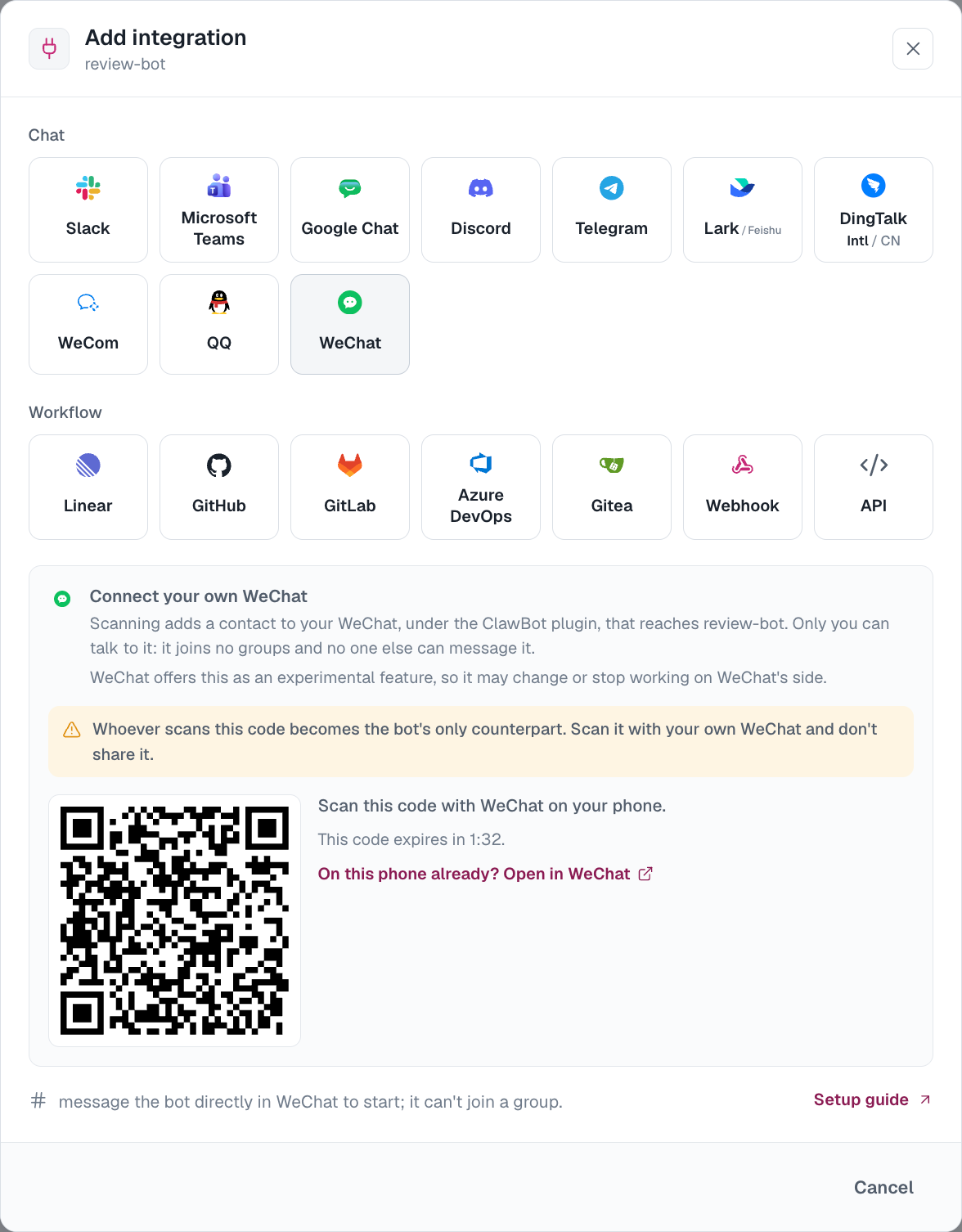
-
Tap Confirm in WeChat. If WeChat shows a number on your phone, enter it in the Console.
-
Once the Console reads Connected to WeChat user, open WeChat, find the bot under ClawBot, and send it a message.
Whoever scans the code becomes the bot's only counterpart. Scan it with your own WeChat and do not share it.
Use it
- Chat — message the bot. The chat is one ongoing session with the agent, and in the console its sessions are visible only to you.
- Replies — WeChat shows text as typed, so answers arrive as plain text with Markdown formatting removed. Each message arrives complete, a paragraph or more at a time, and a long answer comes as several messages in order. Nothing shows while the agent works before its first message, and WeChat can take several seconds to hand a message to the agent.
- Files and images — send the bot an image, file, or video. A voice message arrives as WeChat's own transcription. An agent cannot send images or files back yet.
- Questions — WeChat has no buttons or cards, so a question that needs you to pick an option cannot be asked there; the chat gets a notice instead.
- Approvals — when a tool call needs approval, an Agent editor answers it in the console, and the chat gets a notice.
See In-conversation commands for stopping, cancelling, queuing, and changing supported session settings.
Notes
- If WeChat logs the bot out, it stops answering. Open Integrations → Messaging apps → WeChat → Reconnect and scan again with the same WeChat. The integration is kept; the current conversation closes, and your next message starts a new one.
- If the bot moves to another daemon, messages you send during the move are lost.
- One WeChat bot binds to one agent and one person. Deleting the integration deletes the bot; to connect again, scan a new QR code.
- When you leave the organization, the WeChat bots you connected are deleted with your membership.
Self-hosting
WeChat is off by default on a self-hosted deployment. Turn it on with features.wechat in the Helm chart; on Docker Compose, add wechat to FEATURE_FLAGS in compose.env and recreate web. Until the flag is on, WeChat does not appear in the integration picker.
How is this guide?