Give an agent its own email address so people can email it, get replies in the same thread, and ask it to send new emails.
An email integration gives an agent its own email address. Send or forward an email to it, and the agent works on the message and replies in the same thread. Ask it in any conversation to email someone, and it sends a new email from that address.
Add an address
On your agent, open Integrations → Add integration → Email and pick a name. The address combines that name with your workspace's mail domain, such as support-bot@mail.example.test. An indicator beside the field shows whether the name is available.
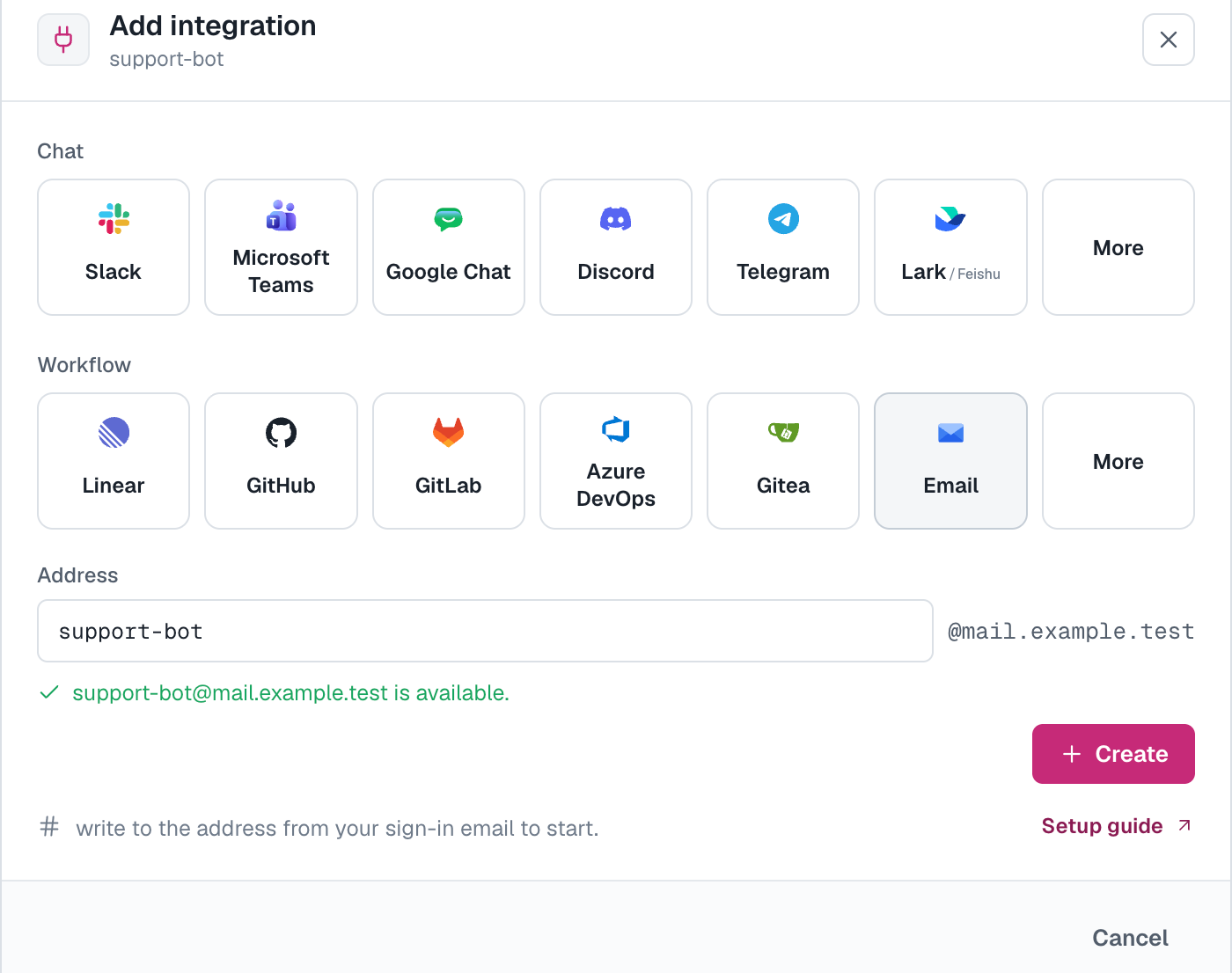
- Names must be 3 to 40 characters using lowercase letters, digits,
., and-, starting and ending with a letter or digit. - Reserved role names people naturally trust, such as
admin,billing, orsecurity, aren't allowed. - Addresses are never reused. Removing the integration permanently retires the address so in-flight email can't reach anyone else.
The agent's Integrations card shows the address with a copy button and a summary of who can email it.

Choose who can write
Click the settings button on the address to open Email settings.
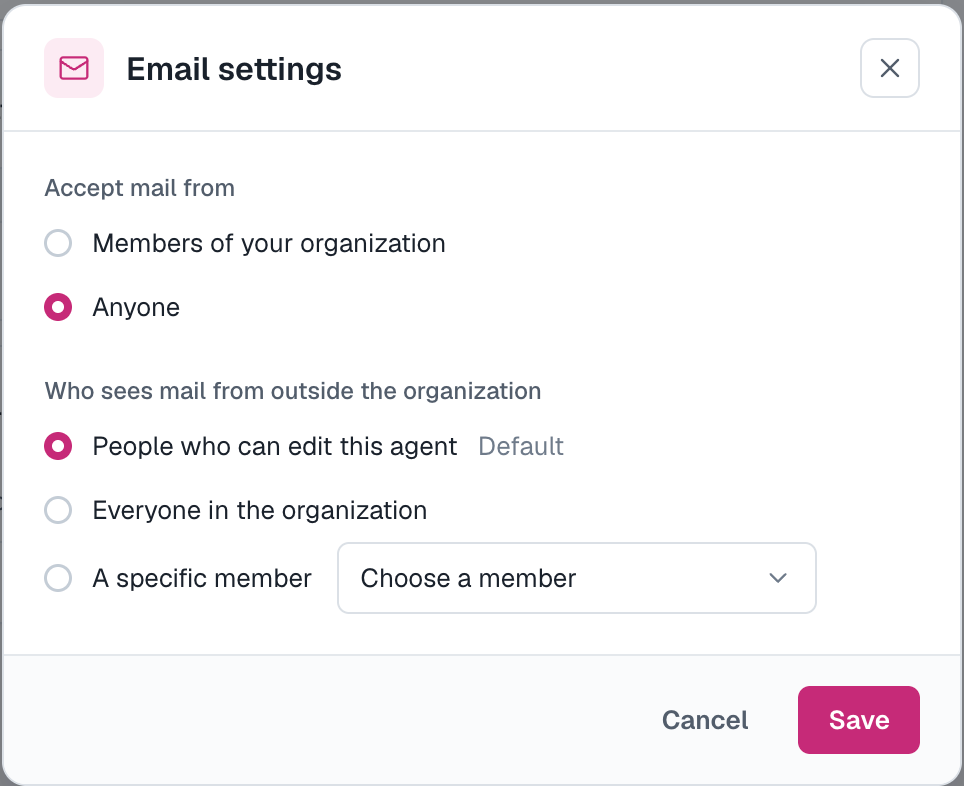
Accept mail from
- Members of your organization (default): only accepts mail from an address a member signs in with. Every address on a member's linked sign-in methods counts, such as both their work and personal Google accounts. An address from a Microsoft work or school account counts only when your organization has verified its domain. Mail from anyone else is rejected, and their mail server notifies them.
- Anyone: accepts mail from any sender. Organization members are still recognized as members.
Either way, incoming email must pass sender domain checks so spoofed senders are rejected. Automated messages, such as out-of-office replies and mailing lists, are ignored to prevent auto-responder loops.
Who sees mail from outside the organization
With Anyone selected, choose who can see sessions started by email from outside your organization:
- People who can edit this agent (default): everyone who currently has edit access to the agent. If editors change, visibility updates automatically.
- Everyone in the organization.
- A specific member of your choice.
Emails sent by a member always open sessions only that member can see.
Conversations and replies
Each email thread maps to one session in Sessions. Follow-up messages continue the same session, and the agent can read earlier messages in the thread.
The agent sends one reply per turn in the same thread. It replies to the sender and copies other organization members in the thread. With Anyone selected, it also copies external addresses that have sent a message in the thread themselves. Addresses only listed in Cc aren't added automatically. The agent is told who was left off so it can mention that in its reply.
Emails sent only to organization members include the agent's attribution footer when enabled in output settings: the agent's name (linked to its page) and a link to the session. Any email with an external recipient omits the footer.
In the console, emails you sent appear as from You, and emails from other members show their name and avatar just like chat messages. Emails from non-member addresses show the raw address.
Attachments aren't passed to the agent yet, though it can see their filenames.
Ask the agent to send an email
In any conversation with the agent (console, chat platform, or email thread), ask it to email someone:
Email the release notes to ops@example.test and copy dana@example.test.
The agent sends a new email from its address. Alongside it, AgentConnect keeps an internal note (never sent) recording which conversation requested the email and why, so the agent has context when replies come back.
- When an organization member asks directly, the agent can email any address.
- Requests from a guest in a shared conversation, a schedule or webhook run, or a delegated task can only email members of your organization.
- Each email can have up to 50 recipients.
Sending doesn't require separate approval, because the member who requested it would be the one approving it anyway. Keep in mind that untrusted text the agent reads (a web page, file, or incoming email) could try to trick it into emailing what it knows. If that risk isn't acceptable for an agent, don't give it an email address.
When people reply
Where a reply lands depends on who it's addressed to:
- Reply all continues the email's shared thread, starting from the message the agent sent. Everyone on that thread has seen every message in it.
- Reply to the agent alone opens a separate thread private to that person. Other recipients never see it, and when the agent replies to one person it can't read what another person wrote privately.
In each thread, the agent knows which other recipients have replied privately and who hasn't replied yet, without seeing what they wrote.
To gather everyone's replies, ask in the original conversation where you requested the email (for example, Has everyone replied?). The agent can read each reply thread from there because reply sessions from a member's request belong to that member. Other users asking elsewhere can't read them.
Limits
| New threads | Up to 30 new threads per hour per sender on each agent. |
| Replies | Up to 200 per day per address. |
| Recipients outside your organization | Up to 100 per day per address, across replies and new emails combined. |
| Recipients per email | 50 |
If a reply can't be delivered, it stays in the session marked as not delivered along with the reason.
How is this guide?