Single sign-on
Connect your organization's identity provider over OIDC or SAML, let people join by email domain, and require SSO for every member.
Your organization can let members sign in through its own identity provider. Setup happens in three steps, and you can stop after any step:
| Step | What it changes |
|---|---|
| Verify a domain | Proves your organization controls an email domain without changing sign-in behavior yet. |
| Activate a connection | Addresses on your verified domains can sign in only through your identity provider. |
| Enforce | Every member, including Owners, can access the organization only from an SSO session. |
Automatic membership is configured separately under New members and works with or without an SSO connection.
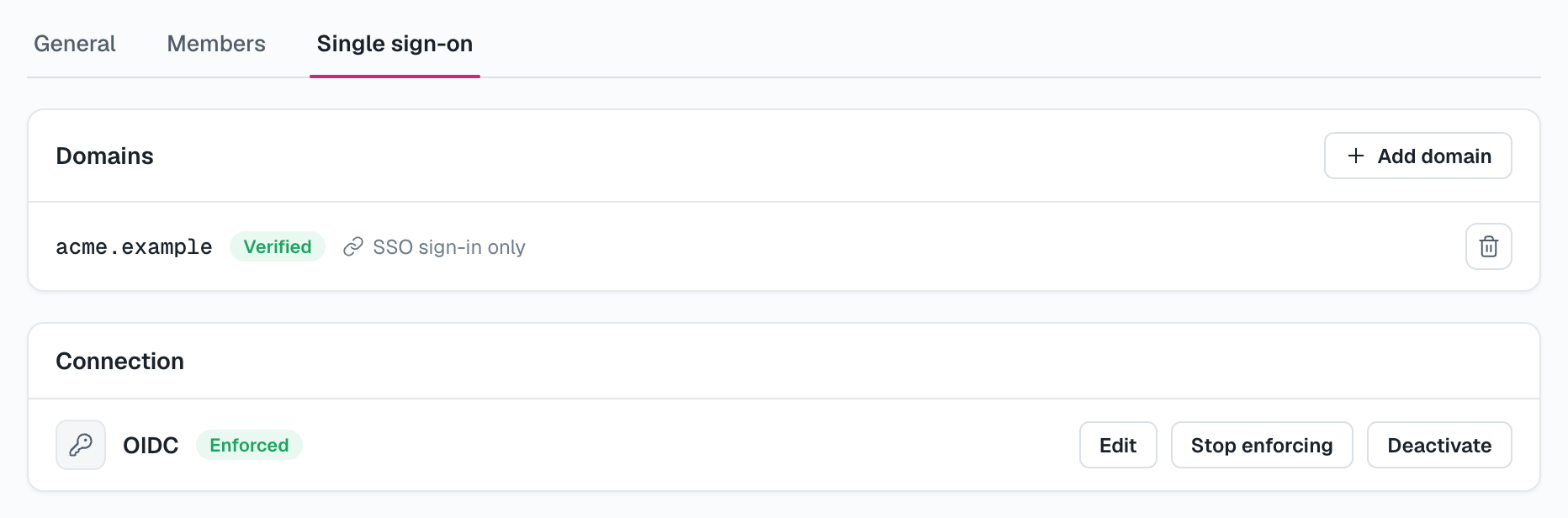
Owners configure SSO under Settings → Single sign-on. Other members can view the tab once a domain or connection exists, but can't edit it.
Verify a domain
-
In Domains, choose Add domain and enter the domain, such as
acme.example. -
At your DNS provider, create the TXT record shown in the row:
Type Name Value TXT _agentconnect-challenge.acme.exampleagentconnect-verification=… -
Choose Verify. The row changes from Pending to Verified.
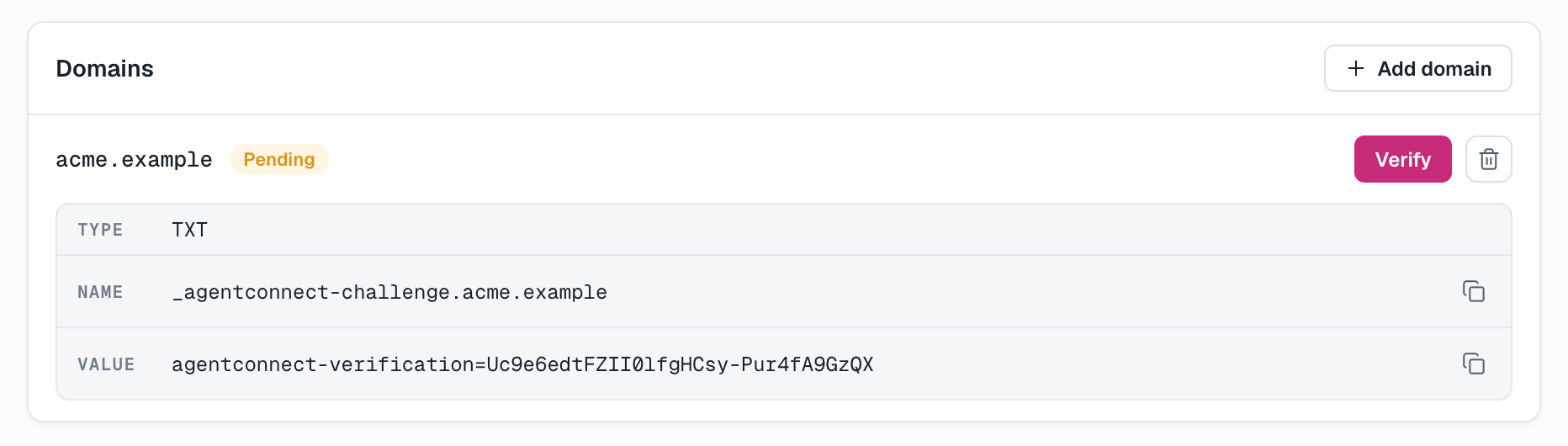
If you see Record not found right after creating the record, DNS likely hasn't propagated yet. Wait a bit and choose Verify again. Pending domains that aren't verified within seven days expire and can be added again.
- A domain can belong to only one organization. If another organization verifies it first, your row shows Verified by another organization.
- Domains are matched exactly. Add
eu.acme.exampleas its own domain if people have addresses there. - An organization can have up to 20 domains.
- Keep the TXT record in place. AgentConnect re-checks it daily. If the record disappears, the domain changes to DNS record missing and you won't be able to activate a connection until you restore it.
Set up the connection
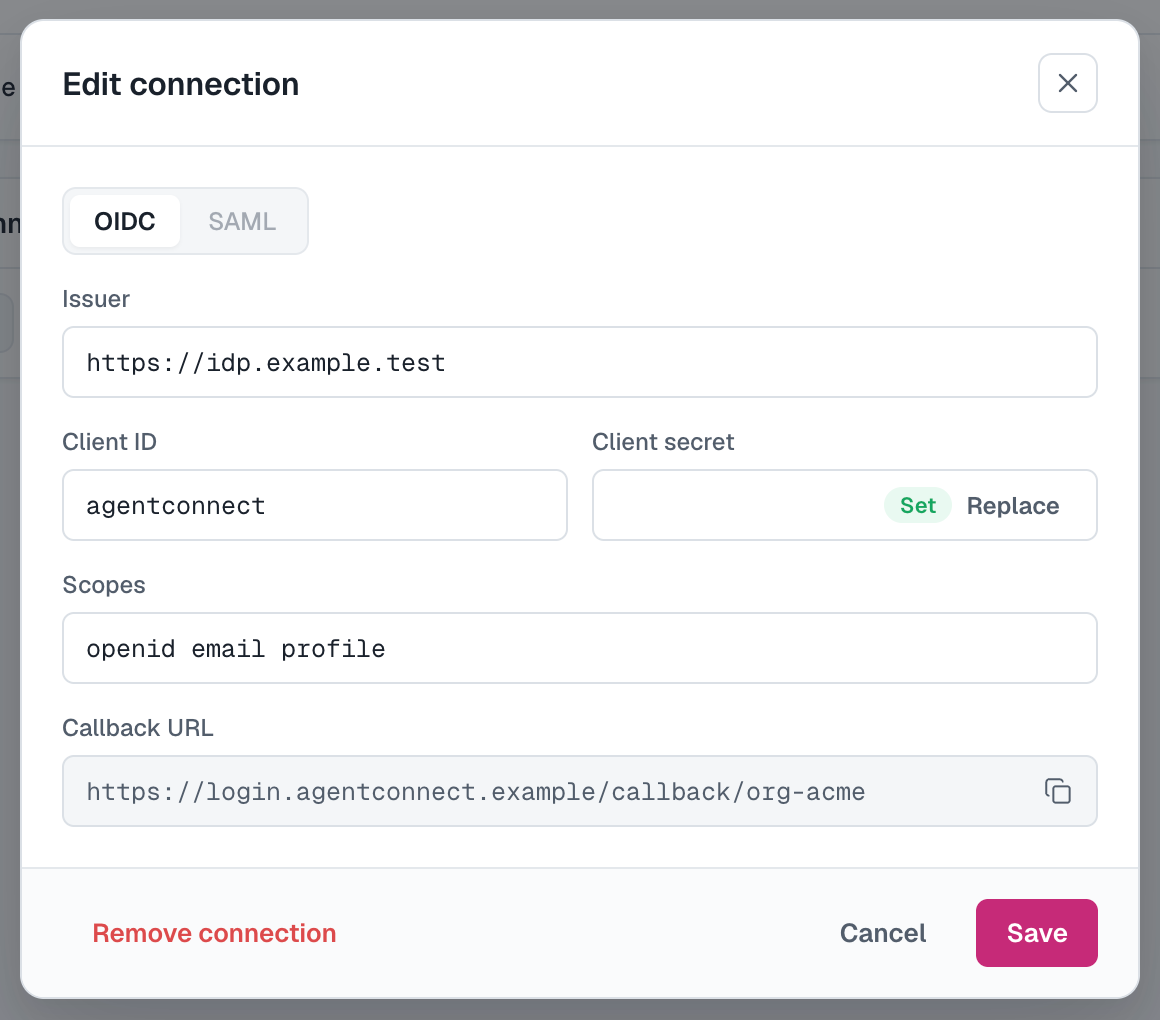
Once a domain is verified, Set up connection appears under Connection. Pick your identity provider's protocol. The dialog displays the values you need to register before saving, so you can create the application at your provider first and come back with the credentials it generates.
OIDC
| Field | Enter |
|---|---|
| Issuer | The provider's issuer URL |
| Client ID, Client secret | The credentials the provider issues for the application |
| Scopes | openid email profile unless the provider needs more to return an address |
| Callback URL | Shown for you to copy and register at the provider as the redirect URI |
SAML
| Field | Enter |
|---|---|
| Metadata | The provider's metadata URL, or its metadata XML |
| Email attribute | The attribute containing the email address (email by default) |
| Name attribute | The attribute containing the display name (name by default) |
| ACS URL, Entity ID | Shown for you to copy and register at the provider |
The protocol is fixed once the connection exists. To switch protocols, remove the connection and set up a new one, which generates new values to register.
A connection applies only to addresses on your verified domains. Sign-ins that return no email address or an address on another domain are rejected. AgentConnect trusts the email address your provider returns, so only use a provider where users can't freely edit their own email.
Test the sign-in
A new connection starts in the Not tested state. Choose Test sign-in to sign in once through your identity provider and view the result page.
- Sign-in test passed shows the email address returned by your provider. Choose Back to Settings, and the status changes to Tested.
- Sign-in test failed explains what went wrong. If the provider didn't return an address on your verified domains, the page lists Attributes the provider sent (names only) and marks any that contain an Address in your domains. Set one of those as your Email attribute (or fix the email claim for OIDC) and run the test again.
Keep two things in mind before starting a test:
- For ten minutes after the test starts, addresses on your domains can sign in only through this connection, just as if it were active.
- If the provider returns someone else's address, you'll be signed in as that account and will need to sign back in as yourself.
Editing the connection's settings later resets its status to Not tested until a test passes again.
Activate
Once you have a verified domain and a tested connection, you can choose Activate. From that point on:
- Addresses on your verified domains can sign in only with SSO, and other sign-in methods are rejected for them. Each verified domain shows SSO sign-in only.
- Anyone who already has an account with one of those addresses keeps it. Their first SSO sign-in opens the same account with their existing memberships and settings.
- Any domain you verify later is covered as soon as it's verified, after a confirmation prompt.
Activating a connection only changes how those addresses sign in. It doesn't add or remove members.
How members sign in
On the sign-in page, members choose Continue with SSO, enter their Work email, and are redirected to your identity provider. The SSO page has its own URL (/login/sso on the console), so members who always use SSO can bookmark it and skip the first screen.
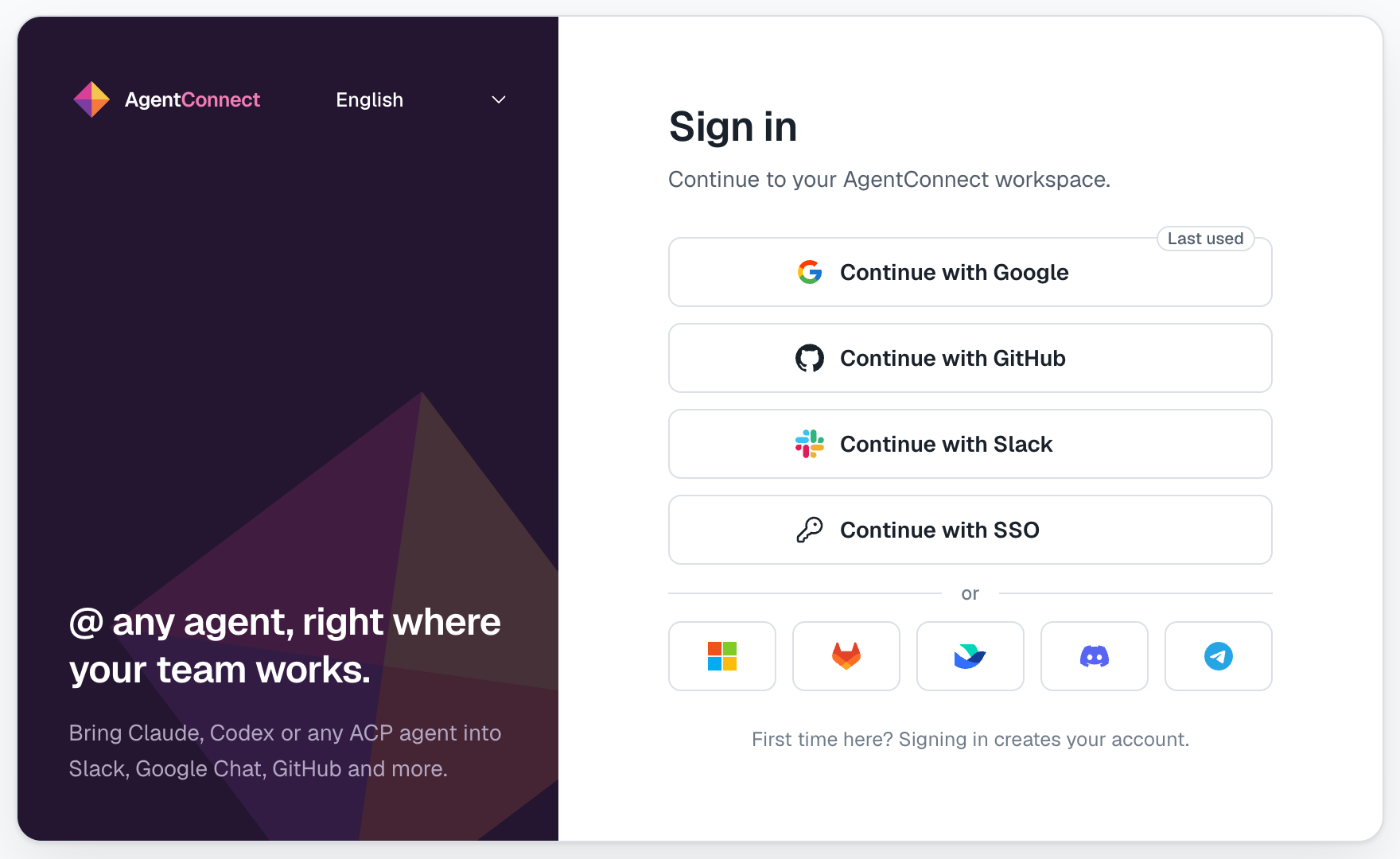
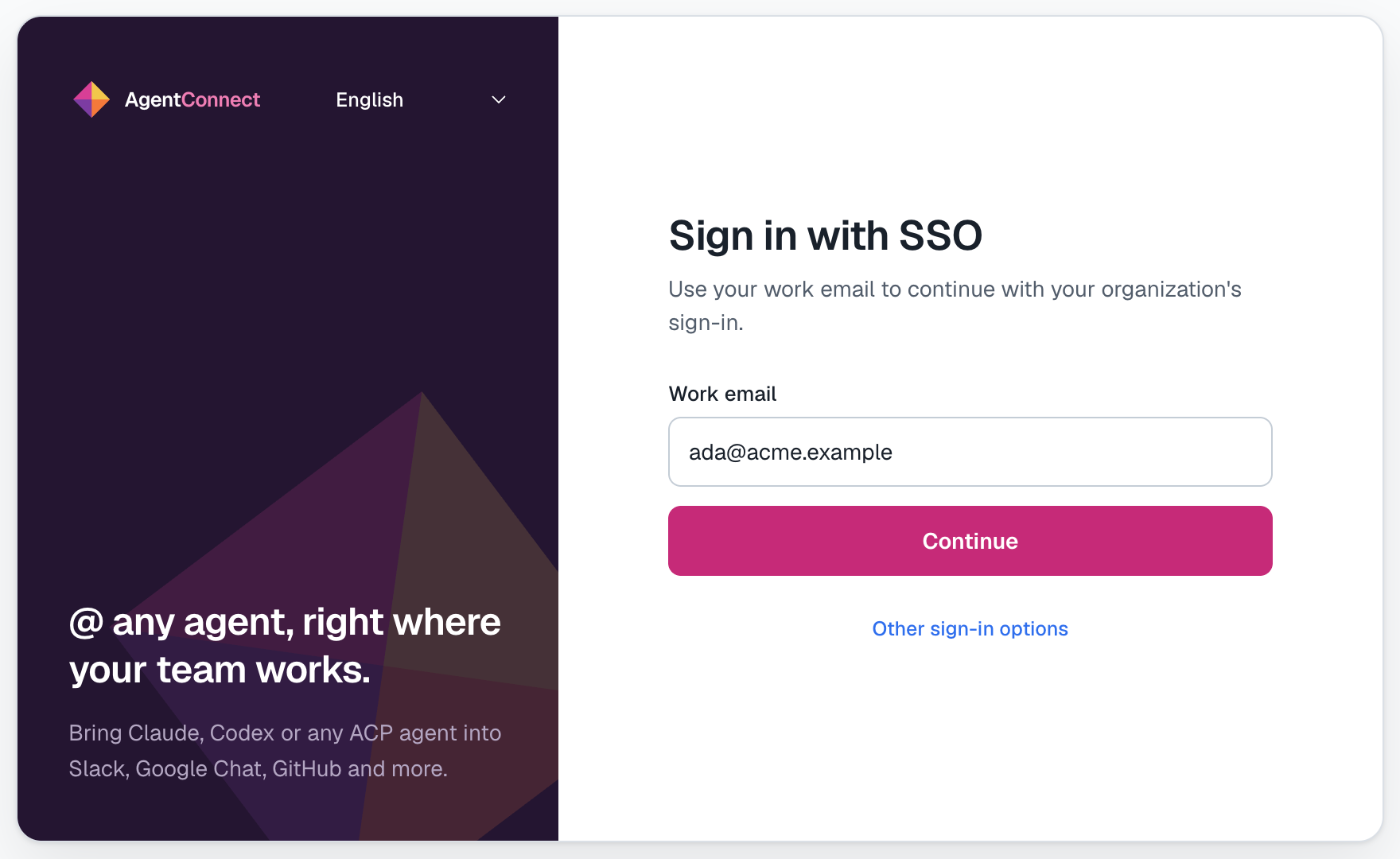
The sign-in page marks the browser's last-used method with Last used, and the SSO page pre-fills the last email address entered. An address whose domain has no active connection sees No single sign-on is set up for this email.
New members
Settings → Members → New members appears once a domain is verified:
| Choice | Who joins |
|---|---|
| Invite only (default) | Only people an Owner adds or who open an invite link |
| Anyone on your domains | Also anyone who signs in with an address on a verified domain |

Anyone who joins by domain is added as a Collaborator, once:
- If an Owner later removes them, they won't be re-added on their next sign-in. Invite them to add them back.
- Existing members keep their current role.
- People who were already signed in when you changed the setting join on their next sign-in.
This setting doesn't require an SSO connection. With a verified domain alone, people on that domain join when they sign in with any method. Removing your last verified domain resets the organization to Invite only.
Matching uses the email address on the user's AgentConnect account. Someone who left your company but can still sign in to that account another way still matches your domain. Remove them from Members, and enforce single sign-on if you want your identity provider to control access.
Enforce single sign-on
An active connection restricts how addresses on your domains sign in, but an account can have multiple sign-in methods. Enforcing SSO closes that gap: every member, including Owners, can open the organization only from a browser session signed in through the SSO connection.
Enforce is available on an Active connection. To turn it on, you must be an Owner whose email is on one of the verified domains, and your current session must be signed in with SSO. If it isn't, the dialog offers Sign in with SSO and brings you back.
While the connection status is Enforced:
- Members who signed in another way see Acme requires single sign-on instead of the organization, along with a Sign in with SSO button. Their other organizations are unaffected.
- Members whose email isn't on your verified domains can't sign in with SSO and lose access. Give contractors an address on your domain in your identity provider, or leave enforcement off.
- Creating a personal API key or approving an OAuth grant for the organization also requires an SSO session. Existing keys, OAuth tokens, and service accounts keep working, so revoke any credentials held by departing members.

Stop enforcing lets members access the organization from any sign-in method again while keeping the connection active. Editing the connection's settings or deactivating it also turns off enforcement, and an Owner has to re-enable it manually.
If your identity provider goes down while SSO is enforced and no Owner can sign in, a deployment administrator can turn enforcement off.
Change or remove
| Action | What happens |
|---|---|
| Edit | New settings apply immediately. The connection stays active, resets to Not tested until a test passes, and is no longer enforced. For OIDC, the stored client secret is kept unless you choose Replace or change the issuer. |
| Deactivate | Addresses on your domains can sign in with any method again. People who already signed in through the connection can still use it. |
| Remove connection (in Edit) | Deletes the connection and the SSO sign-in identities it created. User accounts remain, and their owners can sign in with another method. |
| Remove domain | You can remove a pending domain at any time. A verified domain can be removed only when the organization has no connection. |
If a connection shows Needs configuration, its settings were lost at the sign-in service. Choose Reconfigure and enter them again; the values to register at your provider may have changed.
On your profile
Your profile → Sign-in methods lists the identity provided by an organization's connection as SSO, alongside its email address. You can't unlink it there; it's removed automatically if the organization deletes its connection. See Linked accounts for other sign-in methods.
Self-hosting
Everything on this page applies to deployments where the operator allows organizations to configure their own SSO. Single-company self-hosted deployments more often use one deployment-wide connector managed by the operator, with its own New members setting. See Sign-in for both options.
How is this guide?