Watch and take over
Watch a Computer's screen live from the console, take the mouse and keyboard, stop agents from the console or from the machine, and review activity and stored screenshots.
Agents and people share a computer under one rule: the person wins. You can watch at any time without disturbing an agent, take the mouse and keyboard when you need to, and stop every agent at once.
Watch the screen
Open the computer from Infra. The Screen card on its Overview tab shows who has control; select Watch to see the screen live. Watching never blocks agents, and several people can watch at once.
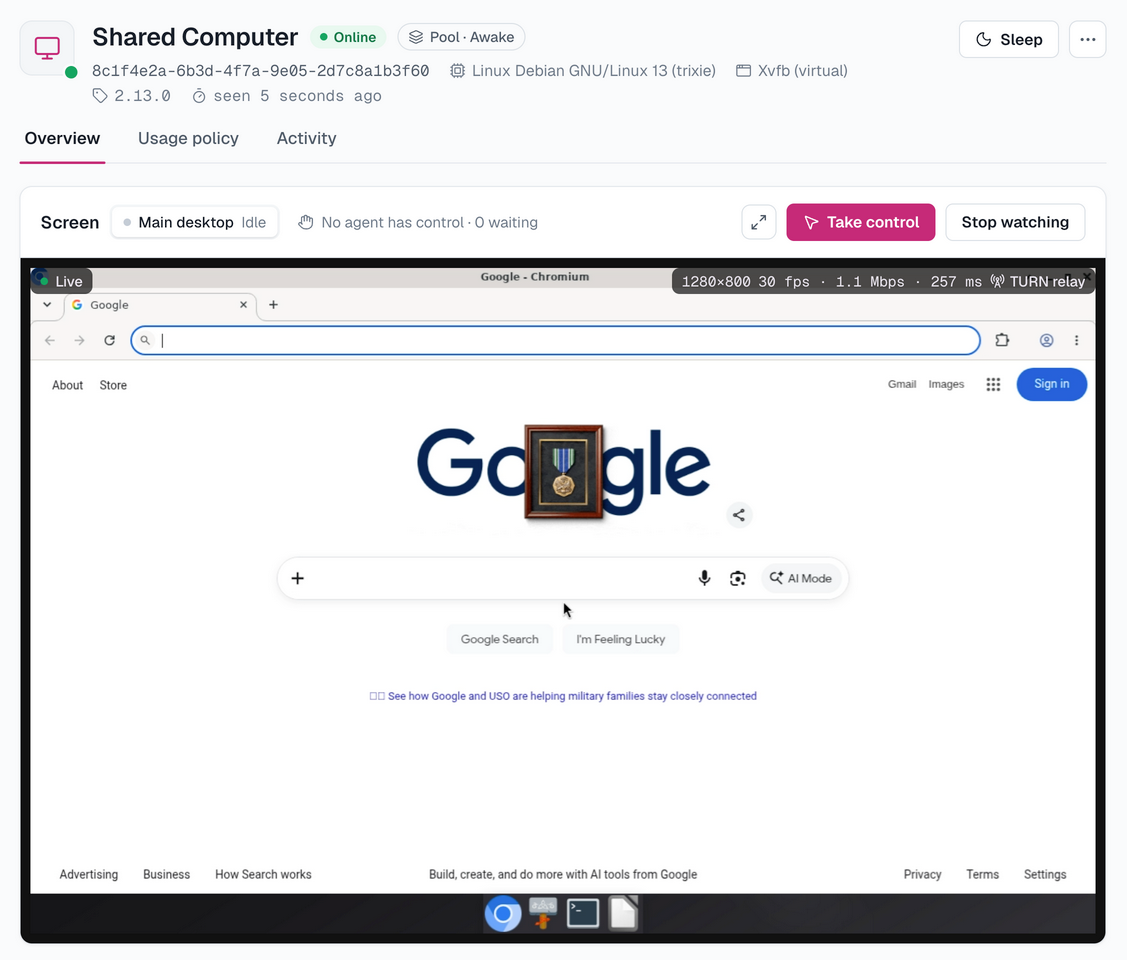
On a Linux computer where each agent has a desktop of its own, the Desktop picker switches between the Main desktop and each agent's desktop.
A session's page has a Computer tab in its side panel as well. It shows the computer that session's agent is using, so you can follow a task without leaving the conversation.
How the video travels
The viewer takes the first path that connects, and a badge names it:
| Badge | Path |
|---|---|
| Direct | Straight from the desktop to your browser, on the same network or to an address the desktop publishes |
| Peer to peer | Straight between the two across networks, after both learn their public address from the relay |
| TURN relay | Through the deployment's TURN server, when no direct path connects |
| Screenshots | The page polls screenshots through the relay, a few frames a second, when video cannot connect |
The Control Plane never carries the video. Peer to peer shows viewers the desktop's public IP address, so the computer's Peer-to-peer viewing setting decides whether it is used; see the usage policy. There is no audio and no clipboard sync.
Take control
While watching, select Take control. Your mouse and keyboard now drive the desktop, and agent input is refused until you select Hand back. Control is also released shortly after your browser goes away.
- Use the text box under the screen for pasted text and for text that needs an input method.
- On a computer with a desktop for each agent, taking control pauses only the desktop you took. Agents on the other desktops keep working.
- Only someone allowed to control the computer can take over, which by default is its owner. Everyone else it is shared with sees Watching only.
An agent whose input is refused is told that a person is in control. It can still take screenshots, so it sees what you did when you hand back.
Stop and resume
Stop in the computer's header ends agent control at once and refuses every agent until Resume. Any Owner or Collaborator who can see the computer can stop it. Resuming your own desktop is the owner's alone, and an API key or an agent can never do it.
Stopping also stops the commands agents are running on the computer. Screenshots keep working while it is stopped.
At the machine
Sitting at the machine, you do not need the console:
- Just use it. When the pointer moves and the agent did not move it, agent input is refused for a few seconds. On Linux X11 sessions, pressing a key or a mouse button counts too.
- Stop all agent input. Use the tray icon on Linux X11, the menu bar icon on macOS, or the taskbar icon on Windows. Agents stay paused until you choose resume there.
- Stop hotkey. On Linux X11, press
Ctrl+Alt+Shift+Escape. - From a terminal. Run
npx -y @agentconnect.md/cli computer pause, andcomputer resumeto let agents continue.
A pause made on the machine is resumed on the machine. Nothing an agent can reach lifts a pause: the controls on the desktop can only stop agents, and agent input is refused while they are stopped.
With a desktop for each agent, your own input on the main screen does not pause agents, because they are not on it. Stopping from the tray, the hotkey or the console still pauses every desktop.
What agents cannot do
Whatever the policy says, the desktop daemon refuses:
- System shortcuts. On Windows, Windows-key combinations and Ctrl+Alt+Del. On macOS, lock screen, log out and force quit.
- Security surfaces. The lock and sign-in screens, authentication dialogs, and the system's privacy and security settings. A Windows administrator prompt is answered only as the computer's Administrator prompts (UAC) setting allows.
- Its own controls. The indicator and the stop controls.
An action whose outcome is unknown, because a call timed out or the connection dropped, is never sent again. The agent gets a fresh screenshot and decides from what it sees.
Review activity
The Activity tab, which only the computer's owner sees, lists what happened on the computer by day. Filter it to Viewers or Agents. Each entry names the agent, the action, how long it took and whether it was approved, with a link to its session. Entries are kept for 90 days.
Typed text is recorded by its length only. A command an agent ran is recorded as the command itself, with its exit code but never its output. File access records the path and size, never the content.
Stored screenshots
Where the deployment stores screenshots, the ones an agent's tools return are kept, and a computer tool row in the session timeline shows them. Reading one requires access to both the session and the computer.
Keep screenshots in the usage policy sets how many days they are kept; 0 stores none. Lowering it applies to screenshots already stored, and deleting a computer hides its screenshots at once. A screenshot that expired or was never stored shows as unavailable in the timeline.
The video you watch is never stored.
How is this guide?