Add a computer
Register a Linux, macOS or Windows desktop, or a desktop container, as a Computer with one command. Check its health, manage the desktop daemon, share it, and revoke or delete it.
Adding a computer installs the desktop daemon on a machine and registers it with your organization. You become its owner. Owners and Collaborators can add computers; Viewers cannot.
Before you start
- A signed-in desktop. The daemon runs inside a graphical session, so sign in to the machine's desktop as yourself. It cannot capture a machine that only has an SSH session.
- Node.js 24.12 or later on that machine.
- Run as yourself, not as root or as an administrator. The daemon acts as the person signed in.
| Platform | What to expect |
|---|---|
| Linux, X11 | Nothing to approve |
| Linux, GNOME on Wayland | Approve remote interaction and screen sharing once, then log out and back in once |
| macOS | Allow Accessibility and Screen Recording for the AgentConnect Computer app |
| Windows 10 and 11 | One administrator approval, which installs the background service |
| Docker | A server with Docker on amd64 or arm64; no desktop needed |
Add it from the console
- Open Infra, find the Computers section, and select Add computer.
- Optionally enter a Name. Without one, the computer uses its hostname.
- Choose who can see it. Only you see it unless you share it; see Visibility.
- Copy the command and run it in a terminal on that computer, inside its desktop session.
npx -y @agentconnect.md/cli@latest computer install --register "<token>" --cp-url "<exchange URL>"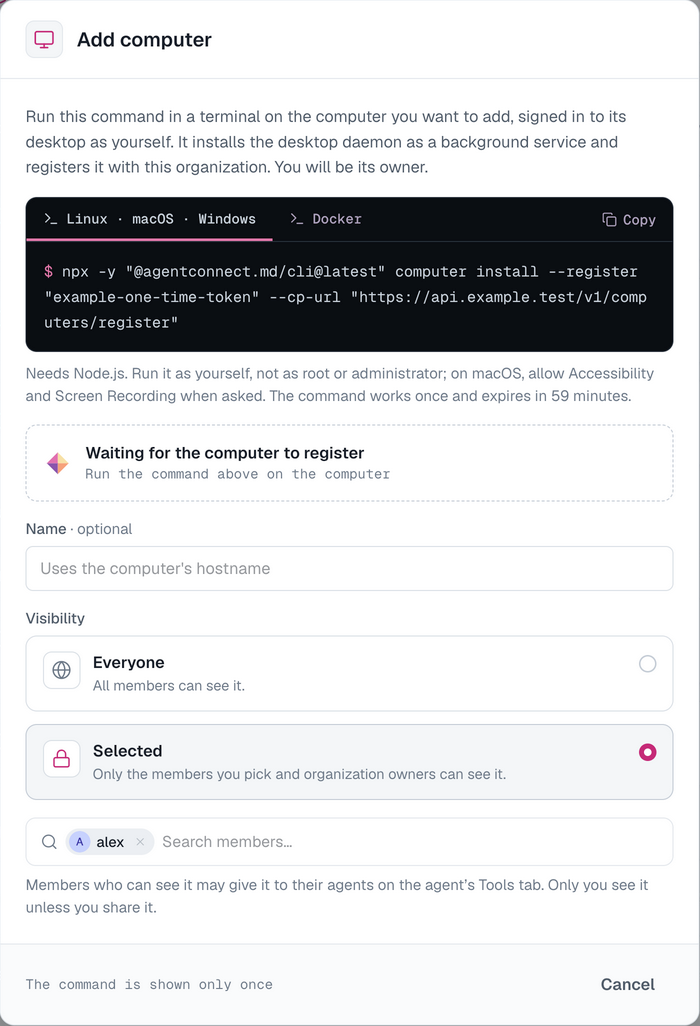
The command is the same on Linux, macOS and Windows. It is shown only once, works once, and expires after an hour; Create new command makes another.
The dialog follows the registration: Waiting for the computer to register, then Registered, waiting for it to connect, then Computer connected. Select Open computer to see its page.
The command does the following:
- Downloads the desktop daemon from npm and verifies it.
- Downloads the pinned screen driver and ffmpeg, and checks their checksums.
- Asks for the approvals the operating system requires.
- Installs a background service that starts when you sign in to the desktop.
- Registers the computer with your organization and runs its health checks.
Platform notes
Linux
Run the command in a terminal inside the desktop session. Run over SSH, it installs the service, which starts at the next desktop login.
- X11 needs no approval.
- GNOME on Wayland asks twice during setup: switch on Allow Remote Interaction and keep Remember This Selection, then approve screen sharing. Setup also installs a GNOME Shell extension, so log out and back in once. Text that needs an input method, such as Chinese, cannot be typed on a Wayland session.
- A desktop for each agent. By default each agent works on its own virtual desktop instead of your screen. This needs Xvfb and Xfce; setup offers to install them when they are missing. See Taking turns.
A tray icon shows the state on X11: green when ready, amber while an agent has control, red when paused, and grey when the Control Plane is unreachable.
macOS
Run the command in Terminal on the Mac, or over SSH while someone is signed in to its desktop. It installs AgentConnect Computer in ~/Applications, and macOS grants the permissions to that app:
- Accessibility, which macOS 27 names Device Control and Data Access. Being listed is not enough: the switch must be on, or clicks and keys are silently dropped.
- Screen Recording.
Setup opens each System Settings pane and waits. The menu bar icon shows who has control and whether a permission or the Control Plane connection is missing.
Windows
Run the command in a normal, non-administrator PowerShell on the desktop. Setup asks for administrator approval once, then installs a service that runs the daemon in the session of whoever is signed in. Apps an agent launches start as you.
The taskbar icon, in the overflow area until you pin it, shows who has control. Its Administrator Prompts menu chooses who answers a UAC prompt that appears while an agent has control; it is the same setting as the computer's usage policy.
Docker
On the Docker tab, Add computer shows a docker run command instead. It starts a Linux desktop with Chromium and LibreOffice in a container, isolated from the server:
docker run -d --name agentconnect-computer --hostname agentconnect-computer --restart unless-stopped \
  --shm-size=1g -v agentconnect-computer:/home/computer -e LISTEN_HOST=127.0.0.1 \
  -e AGENTCONNECT_CP_URL="<exchange URL>" \
  -e AGENTCONNECT_REGISTER_TOKEN="<token>" ghcr.io/agentconnect-md/computer:<version>
The volume keeps the computer's key, its browser profile and its files, so keep the volume and the same command can run again. For Docker Compose, direct viewer video, and upgrades, see Computers for self-hosting.
Check its health
A computer's page opens on Overview, which lists the daemon's checks: failed ones first, each with its fix, and passing ones folded behind a count. Run the same checks on the machine:
npx -y @agentconnect.md/cli computer doctor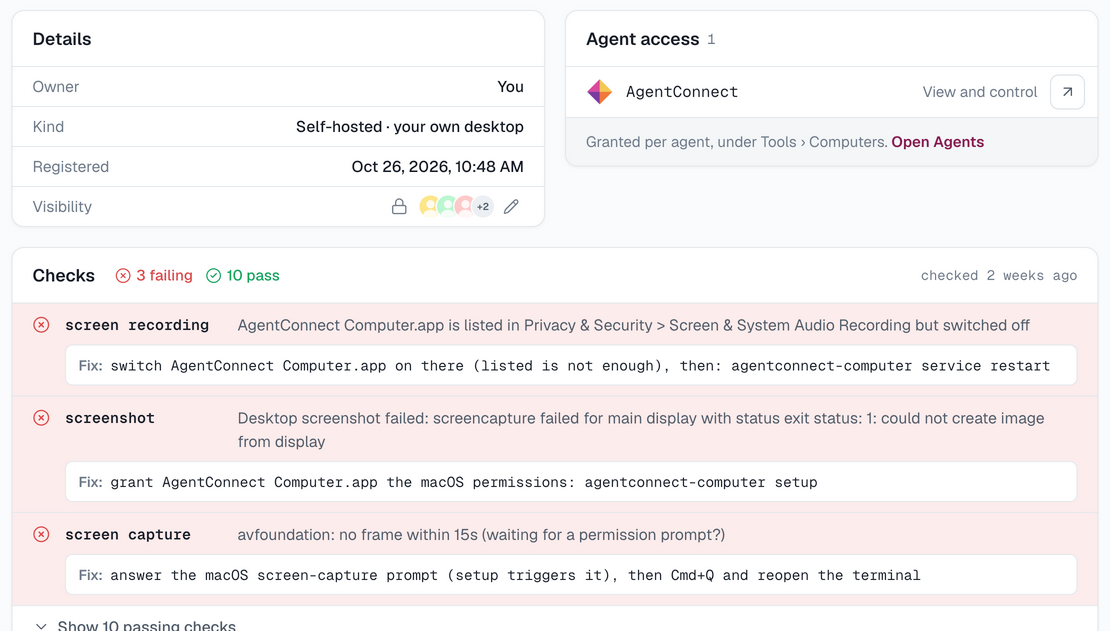
| Status | Meaning |
|---|---|
| Online | Connected and ready for agents |
| Agent working | An agent has control |
| Person in control | Someone is using it or took control in the viewer; agent input is paused |
| Paused | Stopped from the console or on the machine, until it is resumed |
| Locked | The screen is locked; a locked screen cannot be captured or operated |
| Offline | The daemon is not connected, for example signed out, asleep or powered off |
| Asleep | A cloud computer sleeping until its next use |
| Revoked | Its key was revoked; register it again to bring it back |
Manage it on the machine
npx -y @agentconnect.md/cli computer status     # version, service, and whether the daemon answers
npx -y @agentconnect.md/cli computer upgrade    # install the latest release, restart, roll back if unhealthy
npx -y @agentconnect.md/cli computer restart    # also: stop, start
npx -y @agentconnect.md/cli computer uninstall  # remove the service and the installed versions
An upgrade keeps the registration: the configuration and the computer's key stay in the daemon's data directory, ~/.agentconnect/computer on Linux and macOS. uninstall --purge deletes them too.
Visibility
A computer's visibility decides which members see it, and a member who can see it may give it to their agents. A computer you add starts visible to you only. To share it, open the computer, find Visibility under Details, and select Change visibility.
Sharing your own desktop lets other members point their agents at it. See Team visibility for how Everyone and Selected work.
Revoke or delete
Both are in the actions menu on the computer's page.
- Revoke disconnects the computer at once and revokes its key. Agents lose access immediately. The desktop daemon stays installed but refuses input, screenshots and viewers until you register the desktop again with a new command.
- Delete removes the computer and its keys. Its activity and stored screenshots are no longer shown. This cannot be undone.
When a member leaves the organization, the computers they own are revoked. To remove the daemon from the machine, run computer uninstall there.
Troubleshooting
- The dialog keeps waiting — the command has not finished on the computer, or it expired. Check the terminal, or select Create new command.
- Registered but never online — the machine cannot reach the deployment. The daemon needs outbound HTTPS and WebSocket access to the Control Plane and the relay.
- Offline after a restart — nobody is signed in to the desktop. The daemon starts with the graphical session, not with the machine.
- Clicks do nothing on macOS — the Accessibility switch for AgentConnect Computer is off. Turn it on, then run
computer doctor. - Chinese or other input-method text is dropped — a GNOME on Wayland session types key codes only. Sign in to an X11 session instead.
- A check fails — the Overview tab shows the fix beside each failed check.
How is this guide?