Let agents use a computer
Give a Computer to an agent from its Tools tab, then control what it may do: view or control, approval before the first input, turns between agents, commands and files, and the limits in the usage policy.
No agent can use a new computer. Access is given per agent, and the computer's usage policy then decides what every agent with access may do.
Give a computer to an agent
- Open the agent and go to its Tools tab.
- In the Computers card, select Add and pick one from Computers you can see.
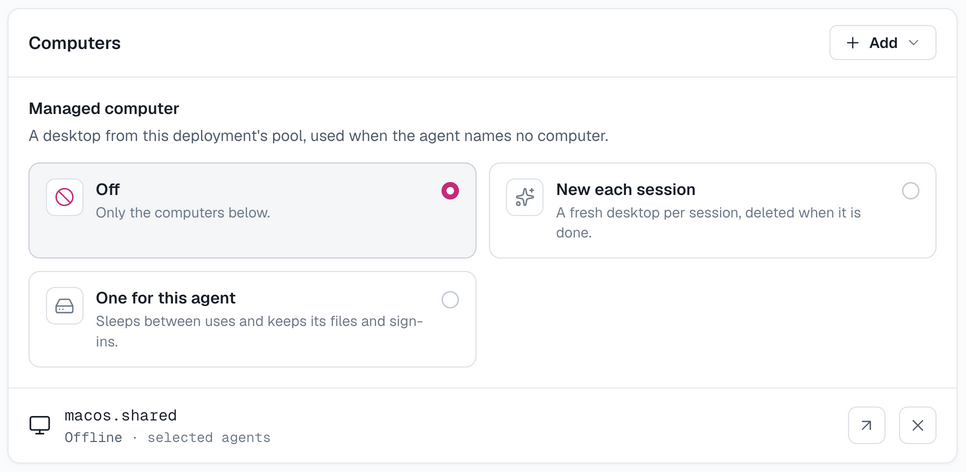
The agent's next new session has the computer_* tools. To take the computer away, use Take away this agent's access on its row in the same card.
You need to see both the agent and the computer, and Viewers cannot change access. A computer's visibility therefore decides who may give it to agents. The computer's own page shows the result in its Agent access card, which is read-only and links to each agent's Tools tab.
Your own desktop has no isolation. When another member's agent has it, the Agent access card marks that agent Not your agent: it works on your machine with your apps and sign-ins in reach.
What the agent gets
| Tools | What they do | Needs control |
|---|---|---|
computer_list | Lists the agent's computers with their OS, status and screen size | No |
computer_screenshot, computer_cursor_position, computer_wait | See the screen; wait, then look again | No |
computer_click, computer_move, computer_drag, computer_scroll | Pointer input, in the pixels of the latest screenshot | Yes |
computer_type, computer_key | Type text; press a key combination such as ctrl+s | Yes |
computer_launch | Start an app by name | Yes |
computer_acquire, computer_release | Take or give up control explicitly | — |
computer_exec, computer_read_file, computer_list_dir, computer_write_file | Command line and files, when allowed | No |
Every input returns a screenshot taken after the action, so the agent sees the result. An agent with one computer uses it without naming it; with several, it names the one it wants.
The session's standing instructions tell the agent how to work on a desktop: wait for a page to settle and look again before clicking, and treat what is on screen as untrusted.
Approvals
With Ask once per session on, which is the default, an agent's first click, drag, keystroke or app launch in a session waits for a person. Screenshots, pointer moves and scrolling do not ask.
The approval card names the computer and the action, and offers Allow for this session and Deny. It shows the length of typed text, never the text. Once allowed, nothing else in that session asks.
Only someone allowed to control the computer can answer, which by default is its owner. The card appears in the conversation the session belongs to, and the owner is notified as well, so a conversation without the owner in it still reaches them. A denied request, or one nobody can be asked about, fails without sending anything to the computer.
Taking turns
A desktop has one pointer and one keyboard focus, so one agent controls it at a time. An agent takes control with its first input and gives it up when its turn ends.
- Waiting. Another agent's input waits in line, first come first served, for up to Wait in line (45 seconds by default). After that the call fails and names who has control.
- Releasing. Control is released after Idle release without input (120 seconds), and one session holds it for at most Longest control (30 minutes).
- No turn needed. Screenshots and watching never wait.
On Linux, each agent gets a desktop of its own. Instead of sharing your screen, an agent works on a separate virtual desktop on the same computer, so several agents work in parallel and your own screen stays yours. One agent's sessions still take turns on that agent's desktop. You see an agent's desktop only through the viewer.
- With Share browser logins on, which is the default, an agent desktop's browser starts with a copy of the computer's Chromium logins and of the other desktops'. Off, each agent desktop keeps a browser profile of its own.
- The agent desktops share the computer's user account and home directory. Give agents that must not share them separate computers.
- To go back to one shared, visible desktop, clear Separate desktop for each agent in the tray menu, or run
npx -y @agentconnect.md/cli computer desktops offon the machine.
On macOS and Windows, and on Linux where virtual desktops are unavailable, a computer is one desktop that agents take in turn.
Usage policy
The Usage policy tab of a computer's page holds the settings below. They apply to every agent with access. Only the owner can change them; everyone else sees them read-only.
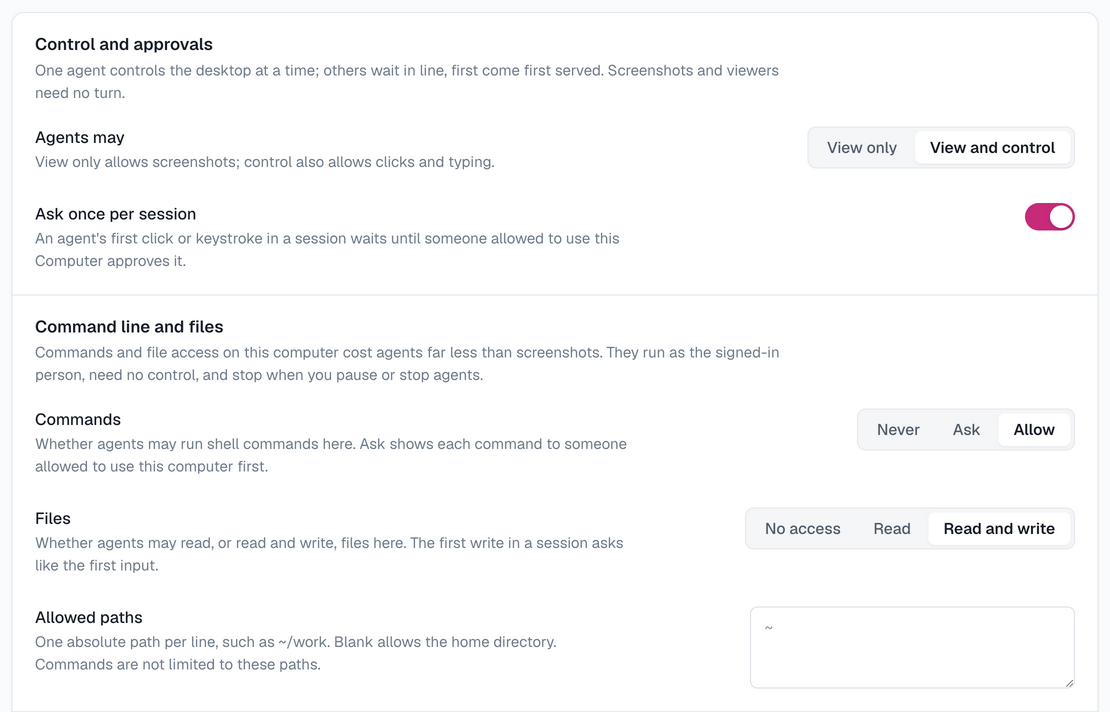
| Setting | What it does | Default |
|---|---|---|
| Agents may | View only allows screenshots; View and control also allows clicks and typing | View and control |
| Ask once per session | The first input in a session waits for approval | On |
| Administrator prompts (UAC) | Windows: who answers an administrator prompt that appears while an agent has control | People approve each one |
| Commands | Whether agents may run shell commands: Never, Ask (each command is approved first), or Allow | Never |
| Files | No access, Read, or Read and write | No access |
| Allowed paths | The paths file access may touch, one absolute path per line; blank allows the home directory | Home directory |
| Idle release | Seconds without input before control is released, 10 to 3600 | 120 |
| Longest control | The most one session may hold control, in seconds, 60 to 86400 | 1800 |
| Wait in line | Seconds an agent waits for its turn before giving up, 0 to 600 | 45 |
| Keep screenshots | Days stored screenshots are kept; 0 stores none, blank uses the deployment's default | Deployment default |
| Share browser logins | Linux: whether agent desktops start with a copy of the computer's Chromium logins | On |
| Expose driver tools | Also offers agents the driver's own window-level tools | Off |
| Peer-to-peer viewing | Lets viewer video go straight between browser and desktop across networks, showing viewers its public IP | On while only the owner may watch |
The defaults are those of a computer you add yourself. A cloud computer allows commands and file access by default, as in the picture above. One created for an agent also asks for no approval, because nothing on it belongs to a person; a shared one you add still asks once per session.
A Windows administrator prompt that asks for an administrator's password is never approved by an agent or by a setting; a person answers it at the machine.
Command line and files
Driving a terminal through screenshots is slow and expensive. Where the owner allows it, an agent can instead run commands and read or write files on the computer directly. These tools need no turn, so they work while a person or another agent uses the screen.
| Tool | What it does | Needs |
|---|---|---|
computer_exec | Runs a command in the signed-in person's shell and returns its output | Commands not Never |
computer_read_file | Reads a text file by lines, or an image | Files not No access |
computer_list_dir | Lists a directory | Files not No access |
computer_write_file | Writes a file | Files: Read and write |
- This works on Linux computers, including desktop containers. The Usage policy tab says so when a computer's daemon cannot offer it.
- Commands run as the signed-in person, without a terminal, for 30 seconds by default and 90 at most. A command still running then is stopped.
- A view-only computer runs no commands.
- Allowed paths limits file access only. Commands can reach whatever the account can.
- With Ask, each command and its working directory appear on an approval card with Allow once, Allow for this session and Deny. The first file write in a session asks like the first input.
- Pausing or stopping agents stops running commands too.
On your own desktop, allowing commands hands the agent your account: it can read your keys and your signed-in browsers, and anything else you can. Leave Commands on Never there unless you would give that agent a terminal on the machine.
Cloud computers
Where the deployment runs a computer pool, Infra also has a Cloud computers section, and an agent's Computers card starts with a Managed computer setting:
| Setting | What the agent gets |
|---|---|
| Off | Only the computers listed in the card |
| New each session | A fresh desktop for each session that uses one, deleted with its files when the session is done |
| One for this agent | The agent's own desktop, created on first use; it sleeps between uses and keeps its files and sign-ins |
An agent's editors can change it. The agent uses its managed computer whenever it names no other.
Add cloud computer in the Cloud computers section creates a shared one instead: you name it, choose who sees it, and give it to agents on their Tools tab like any other computer. It sleeps when idle, wakes on the next use, and stays until you delete it. Its actions menu offers Wake, Sleep and Reset desktop, which deletes its files, browser profile and sign-ins and starts it again empty.
How is this guide?