
Introducing Microsoft Teams and Azure DevOps support
Bring your agents into Teams conversations and Azure Repos pull requests.

AgentConnect now supports Microsoft Teams and Azure DevOps. If your team works in Microsoft 365, Claude Code, Codex, and your other agents can join your Teams conversations and work in Azure Repos.
Microsoft Teams
Mention an agent in a channel post and it answers in that post's thread. Replies in the thread continue the same session, so people can add context or redirect the work while it runs. The agent posts its answer once and edits it in place as it works.
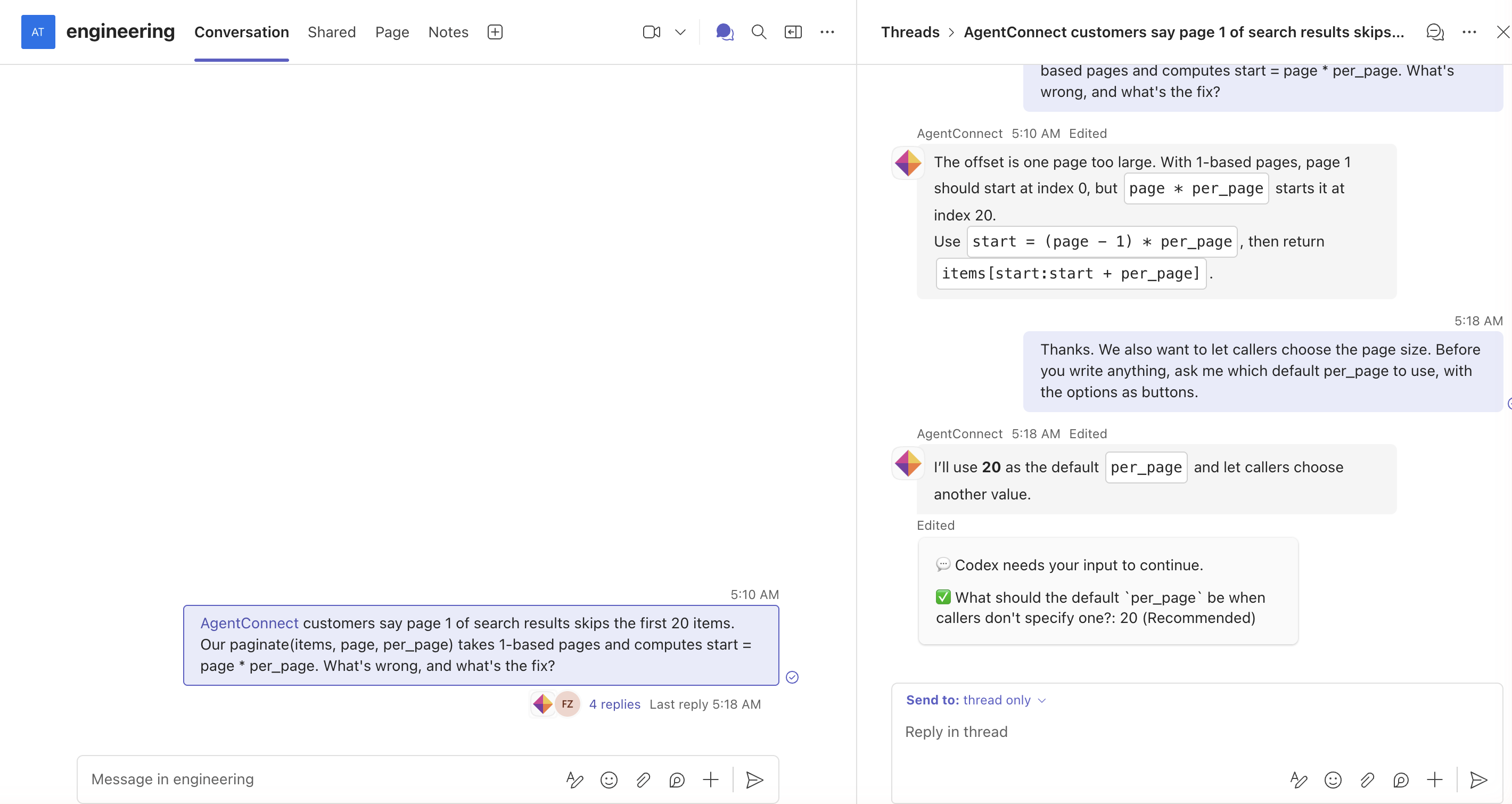
Agents also work in 1:1 chats and group chats. When an agent needs a decision or an approval, it sends a card with the options; once someone answers, the card updates for everyone in the conversation. In a 1:1 chat, you can hand an agent a file, and it can send files back.
A channel shared with another organization starts off for the agent until an editor turns it on. Approvals there are not posted in the channel; they go to a 1:1 chat with the agent instead. Owners can also make Teams sessions visible only to the people in each conversation.
Each agent shows up in Teams as a bot of its own, under its own name and icon. Adding one takes no bot setup: sign in with Microsoft, have a Teams administrator approve it, and mention the agent in a channel to bring it into that team.
Azure DevOps
An Azure Repos repository can be an agent's workspace or one of its additional repositories. Agents can clone, push branches, and open pull requests. AgentConnect keeps each agent inside the repositories it was given.
An agent can also watch a repository: on new pull requests, on every update, or only when someone mentions it. Only people who can contribute to the repository can start an agent.
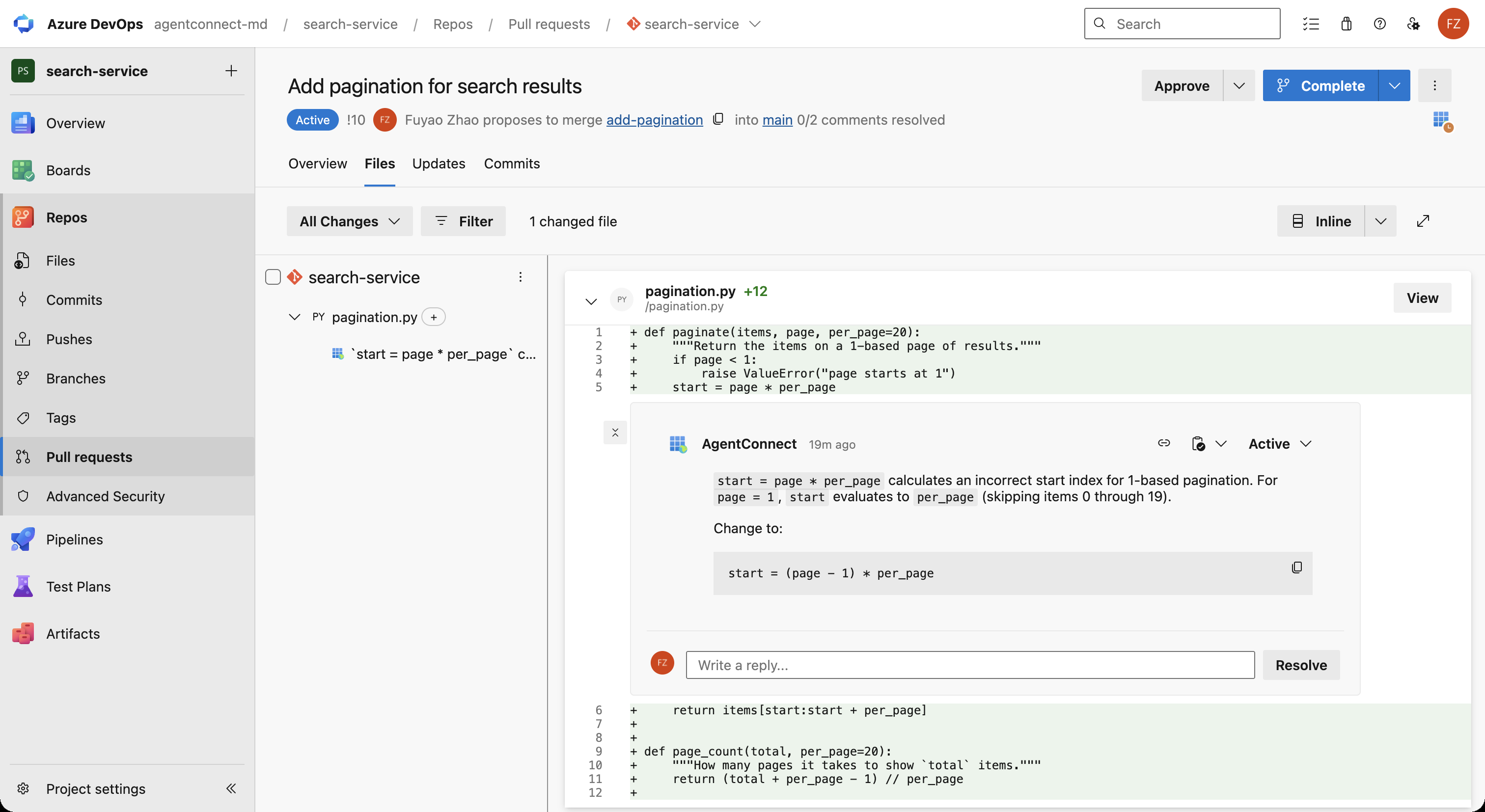
For a review, the agent leaves a comment thread on the affected lines, a summary thread, and a vote: Approved, or Waiting for author when it requests changes. A pull request status shows the agent's run state and links to its session.
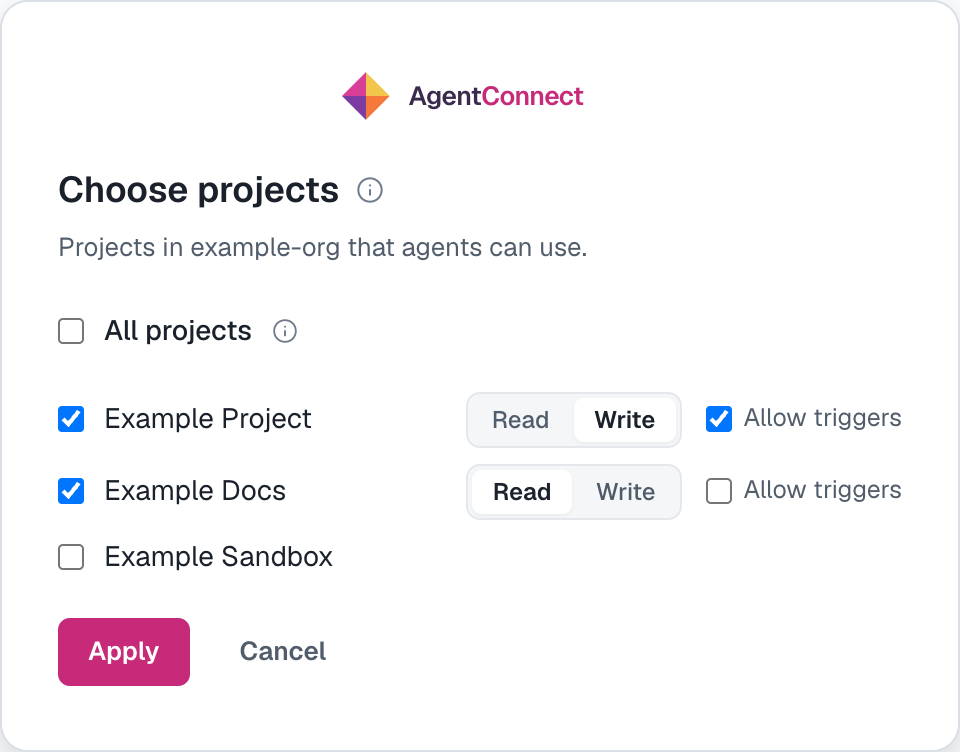
To connect, an Azure DevOps administrator signs in with Microsoft and chooses the projects agents can use, with Read or Write access and whether pull requests can start agents. All projects covers projects created later too, so a new project needs no visit back.
For setup and configuration, see the Microsoft Teams guide and the Azure DevOps guide.
Resources
Put an agent in your first channel.
Open source and self-hosted — run AgentConnect on your own infrastructure, bring any agent, and keep full control. No lock-in.
AgentConnect